B-9 · Contractor Management
Book B — Agency Administrator Guide · draft v1 (2026-08-29)
Where: Navigation form ▸ Contractor Management (the Contractor Management Dashboard). Available to users too, but the list is an agency asset — the administrator owns its quality. 📷
B09-01
 ·
· B09-02
The dashboard
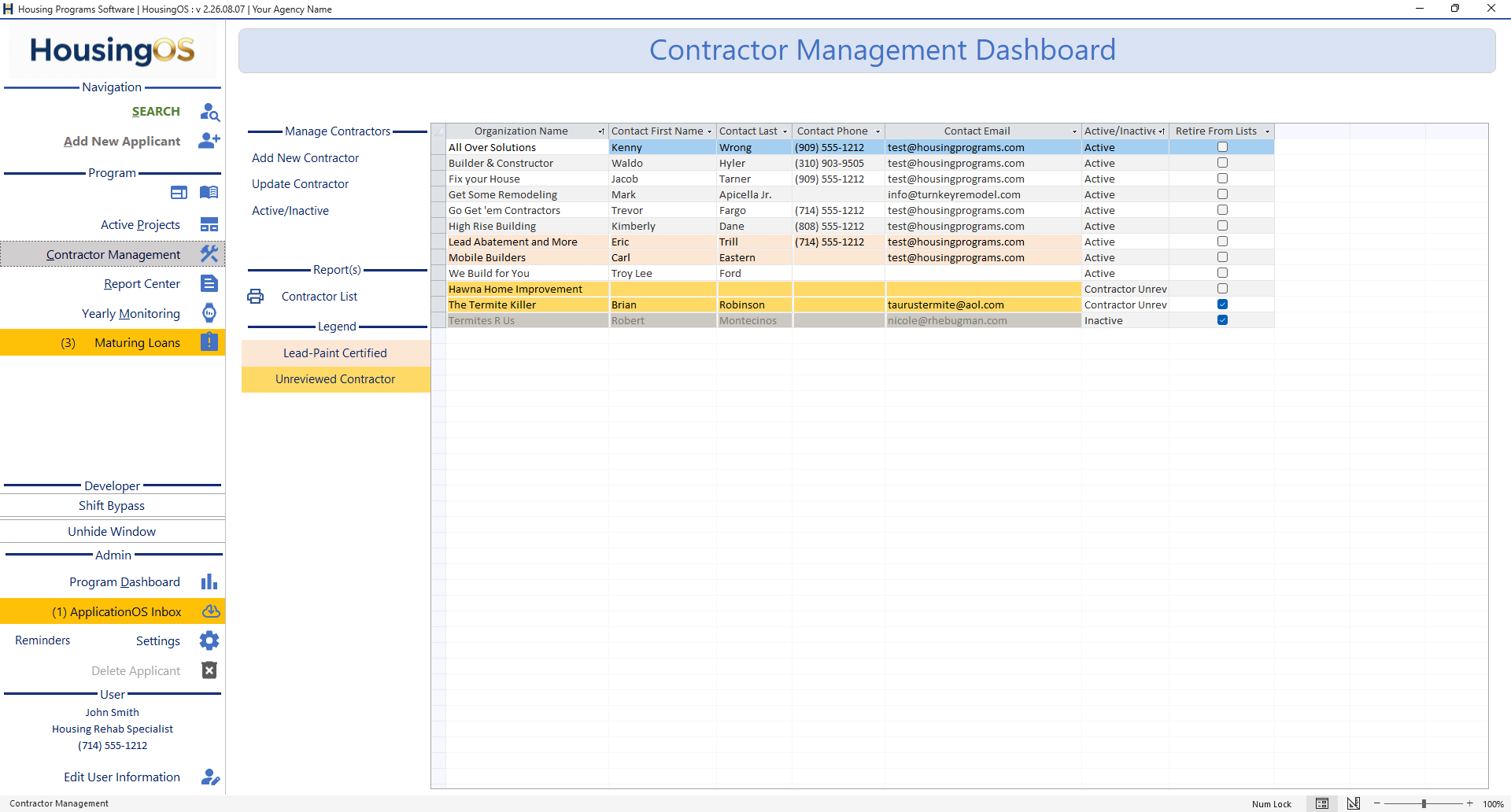
The grid lists every contractor: Organization Name, contact first/last, phone, email, Active/Inactive and Retire From Lists. Colours: orange = Lead-Paint Certified, yellow = Unreviewed Contractor, grey = inactive. Left rail: Add New Contractor, Update Contractor (opens the selected row), Active/Inactive (toggle), and Contractor List (prints the current list as a PDF — it is also what bid invitations attach).
The Contractor Credentials Manager (one contractor)
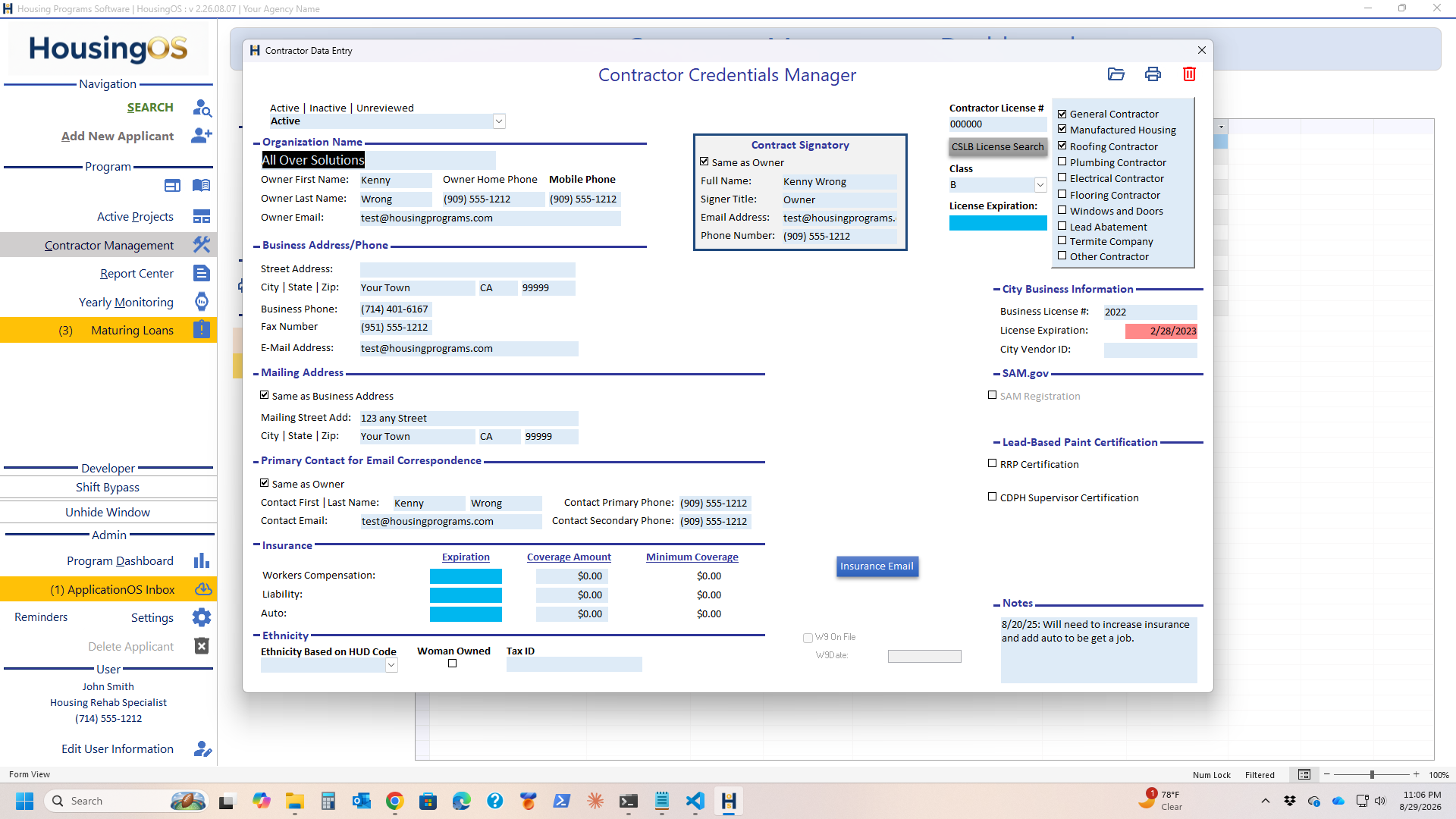
- Status: Active | Inactive | Unreviewed. New contractors start Unreviewed until you've checked their paperwork.
- Organization Name, owner name/phones/email; Business Address/Phone; Mailing Address (Same as Business Address); Primary Contact for Email Correspondence (Same as Owner) — this is who bid invitations and notices go to.
- Contract Signatory — name, title, email, phone printed on contracts.
- Contractor License # with CSLB License Search (opens the state licence board in a browser — HousingOS can't query CSLB directly; record the result and License Expiration), Class, and the trade ticks (General, Manufactured Housing, Roofing, Plumbing, Electrical, Flooring, Windows and Doors, Lead Abatement, Termite Company, Other).
- City Business Information — business licence number and expiration (red when expired), City Vendor ID.
- SAM.gov registration; Lead-Based Paint Certification (RRP, CDPH Supervisor).
- Insurance — Workers Compensation, Liability, Auto: Expiration, Coverage Amount, Minimum Coverage (from Program Settings). Insurance Email sends the certificate request to the contractor.
- W9 On File + date; Ethnicity, Woman Owned, Tax ID; Notes.
- Header icons: open the contractor's folder, print the record, delete.
Which of these items are tracked — and therefore turn the chips red on Contract Management and trigger CONTRACTOR BACKUP INCOMPLETE (▸ C-13) — is set in Program Settings ▸ Contractor insurance check (▸ B-4).
Retire vs. inactive
- Active/Inactive marks the business status; Inactive greys the row.
- Retire From Lists removes the contractor from the pick-lists users see on projects (you're asked "Also RETIRE this contractor from the selection lists?" when you inactivate, and "Also RESTORE…" when you reactivate). Retired contractors keep their history on old projects.
Watch-outs
- Duplicate contractor numbers are refused ("There is a record already using this number.") — search before adding.
- Expired insurance prompts when a contract is prepared; keep expirations current or the project team will hit the backup-incomplete prompt on every contract.
- Contractor folder (Program Settings) is where certificates are stored per contractor; the insurance check looks there by year.
- Never delete a contractor who has been on a project — inactivate/retire.
Screenshot shot list
| Shot | What |
|---|---|
| B09-01/02 | ✅ have them |
Open items for John
- Does CSLB License Search store anything (the CSLBVerifications table) or only open the browser?