C-13 · Contract, Notice to Proceed and Construction Management
Book C — Daily User Guide · Part 4 Construction · draft v1 (2026-08-29)
Who: rehab specialists / construction managers When: a winning contractor has been selected (▸ C-12). Where: project window ▸ CONSTRUCTION MGMT ▸ Contract Management sub-tab (Parts A, B, D) and Project Management sub-tab (Parts C, E); funding figures on FUNDING MGMT; payments in ▸ C-14. 📷
C13-00a
 ·
· C13-00b
What you'll end up with
A verified contractor under a signed construction contract, a Notice to Proceed issued and emailed, any subcontracts and change orders recorded so the contract and contingency figures stay right, and the construction milestone dates filled in through completion.
Part A — Verify the contractor
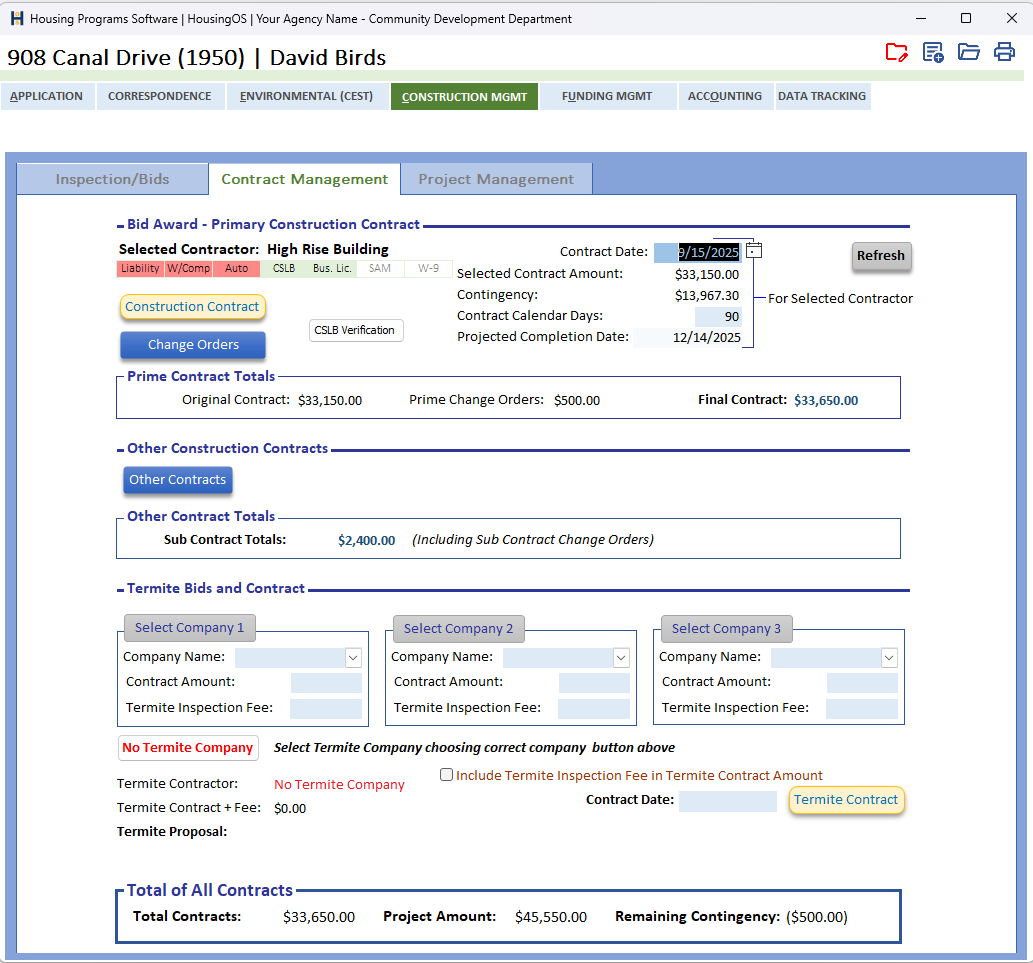
- Before any contract is issued HousingOS checks the chosen contractor's paperwork against what your agency requires (set by the administrator ▸ B-9): contractor's licence, SAM registration, auto insurance, liability insurance, workers' comp, business licence, W-9. Each item shows as a chip under Selected Contractor on the Contract Management sub-tab — Liability · W/Comp · Auto · CSLB · Bus. Lic. · SAM · W-9 — red when a tracked item is missing or expired, grey when your agency doesn't track it.
- CSLB Verification prints the most recent licence-board check on file for the contractor as a PDF into the project folder ("No CSLB verification is on file for: ‹contractor›" if none — do the check from Contractor Management first).
- If anything is missing or expired when you go to prepare the contract you'll see CONTRACTOR BACKUP INCOMPLETE — "These tracked items have not been verified for this contractor: … Do you want to Verify/Update the Insurance? (Yes) or Ignore? (No)." Yes opens the contractor's record so you can update it (the contract is not prepared until you come back and click again); No proceeds and confirms "You chose Ignore. The contract will be prepared." Ignoring is not written to the project log — note it in Comments if your agency wants a record.
📷
C13-01✅ chips covered by C13-00a; still want the CONTRACTOR BACKUP INCOMPLETE prompt itself.
Part B — Construction contract
- In Bid Award – Primary Construction Contract enter Contract Date and Contract Calendar Days; Projected Completion Date is calculated (contract date + days) and Selected Contract Amount / Contingency show for the selected contractor — click Refresh after changes elsewhere. Make sure the Inspector, SOW date, chosen contractor and (if required) termite company are all in place — the contract button checks each and tells you exactly which is missing.
- Click Construction Contract. HousingOS merges the program's construction-contract template with the contractor, owners, property, contract amount (in figures and in words) and work days, saves it to the project folder, and opens it. "Have you selected the contract items? The contract amount is $0!" means nothing is marked Selected in the Bid Analysis grid (▸ C-12 step 10).
- Homeowner insurance must be on file ("Homeowner Insurance Information Is Missing") — enter it on the APPLICATION tab (▸ C-9).
📷
C13-02✅ covered by C13-00a.
Part C — Notice to Proceed
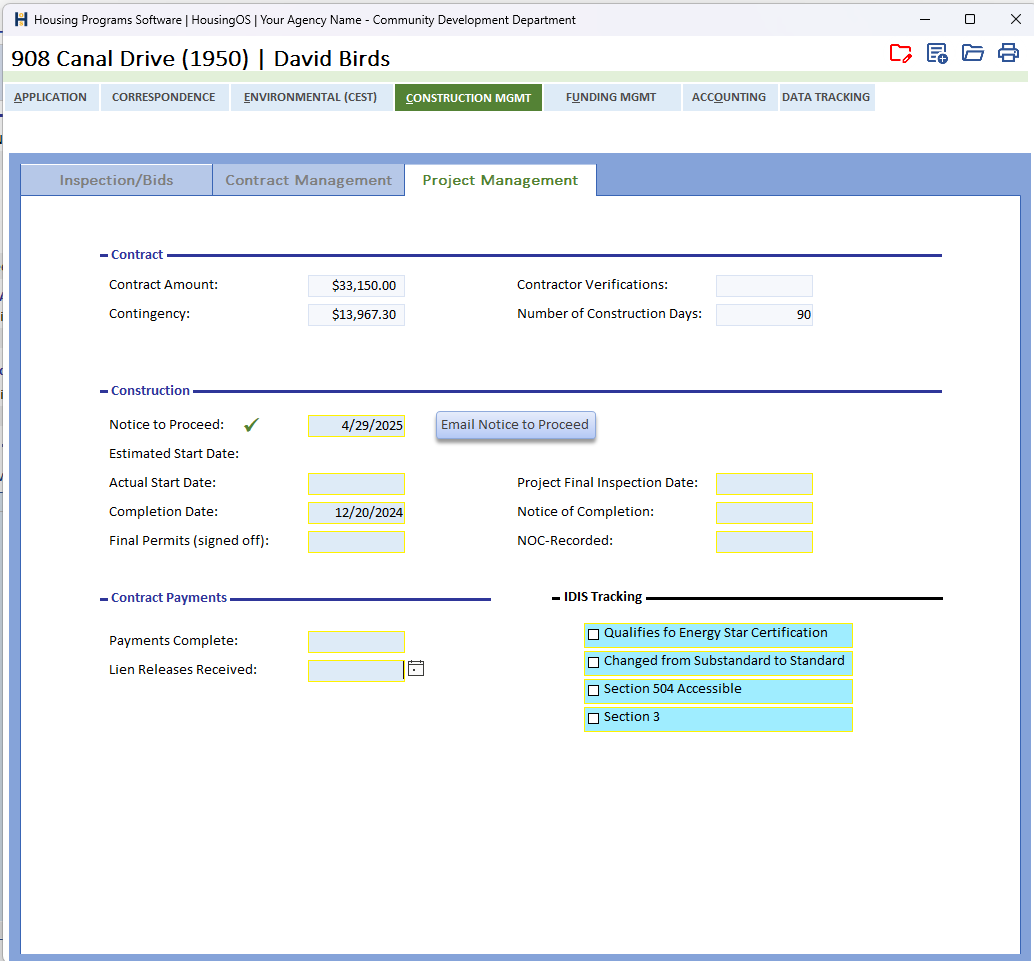
- On the Project Management sub-tab, enter Notice to Proceed (double-click for today; a green ✓ appears once set). Sign, scan and save the notice into the project folder.
- Click Email Notice to Proceed (enabled once a contractor is chosen). You're asked "Has the 'Notice to Proceed' been scanned and saved?" — answer No to stop and do that first. HousingOS then emails the notice to the contractor and the property owners (applicant email required — "Applicant email address is missing"), offers "Update with today's date?" if the NTP date isn't today, and logs "'Notice to Proceed' emailed to ‹contractor› and ‹owners›".
📷
C13-03✅ covered by C13-00b.
Part D — Subcontractors and change orders
- Other Contracts (under Other Construction Contracts) opens the subcontractor form: for each separate contract enter the contractor, Sub Contract Amount, Proposal detail, Number of Work Days and Bid Award Date, then print the Other Construction Contract / Other Contract from its buttons. Each subcontract is a contract in its own right; Sub Contract Totals (including sub contract change orders) shows their sum.
- Change orders — prime contractor: Change Orders (under the Construction Contract button) opens the prime-contractor change-order list. Add a row per change order (date, description, amount — increases positive, decreases negative). Prime Contract Totals updates when you close the window: Original Contract + Prime Change Orders = Final Contract.
- Change orders — subcontractors: from the subcontractor form, Change Orders opens that subcontract's list; Change Order merges the Sub Change Order document (all fields must be complete — "Please Complete All Fields").
📷
C13-04PC change-order list with two rows.
Termite (same sub-tab): Select Company 1/2/3 to record up to three termite bids (Company Name, Contract Amount, Termite Inspection Fee), then click the winning company's button — or No Termite Company. Tick Include Termite Inspection Fee in Termite Contract Amount if the fee is part of the contract, enter the Contract Date, and Termite Contract merges the document. Termite Contract + Fee shows the figure that counts toward contracts.
How the money adds up — the Total of All Contracts box at the foot of Contract Management (and the project status card):
| Figure | = |
|---|---|
| Project Funding | Funding Amount + Owner Contribution + Alternate Funding ± Modification |
| Total Contracts | Final Contract (original + prime change orders) + Sub Contract Totals + Termite Contract + Fee |
| Remaining Contingency | Project Amount − Total Contracts − included fees (from Loan Closing) — shown in parentheses when negative |
Contingency is a running balance — when additional funds are added it goes up; every change order brings it down.
Part E — Construction milestones
- On Project Management fill the dates as they happen (double-click = today): Estimated Start Date, Actual Start Date, Completion Date, Final Permits (signed off), Project Final Inspection Date, Notice of Completion, NOC-Recorded; under Contract Payments, Payments Complete and Lien Releases Received. Tick the IDIS Tracking boxes that apply (Energy Star, Substandard→Standard, Section 504 Accessible, Section 3) — they feed the IDIS export (▸ C-22). These drive the dashboard's Projects by Phase and Behind Schedule cards (▸ C-1) and the monitoring schedule (▸ C-17).
- Payments and disbursements to the contractor and subcontractors are covered in ▸ C-14.
Watch-outs
- Contract amount $0 — go back to the Bid Analysis grid and mark items Selected.
- Ignore leaves no trace. Choosing Ignore on the backup-incomplete prompt isn't logged — add a comment if the agency decided to proceed without the paperwork.
- NTP email needs the scanned notice in the folder first — the email attaches the saved file, not a merge.
- Change orders must be entered, not just filed. Contingency and the status card only see what's in the change-order lists.
- Two kinds of change order — prime (PC) and subcontractor — live in different windows and total separately; don't put a sub's change order in the prime list.
- Classic vs New Outlook — the NTP and bid emails work with either; if an email window doesn't appear, tell your administrator which Outlook you use (▸ B-10).
Screenshot shot list (Demo backend)
| Shot | Where | What to capture |
|---|---|---|
| C13-00a/b | both sub-tabs | ✅ have them |
| C13-01 | prompt | CONTRACTOR BACKUP INCOMPLETE message, if you can trigger it |
| C13-04 | Change Orders window | two rows + total |
| C13-05 | Other Contracts form | one subcontract |
Video script — "Contract to completion" (target 3½ min)
| # | On screen | Narration |
|---|---|---|
| 1 | Verification chips | "With a contractor chosen, HousingOS checks their paperwork against what your agency requires — licence, insurance, W-9, SAM." |
| 2 | Backup-incomplete prompt | "If anything is missing you're told exactly what, and you can update the contractor or proceed." |
| 3 | Contract date, calendar days, Construction Contract | "Enter the contract date and calendar days and click Construction Contract. The construction contract is merged, saved and opened." |
| 4 | NTP + email | "Sign and scan the Notice to Proceed, then Email Notice to Proceed sends it to the contractor and the owners and logs it." |
| 5 | Change Orders / Other Contracts | "Prime change orders go under Change Orders; subcontracts and their change orders under Other Contracts. Contingency updates automatically." |
| 6 | Milestone dates | "As construction moves, stamp the milestone dates — permits, start, final inspection, completion, lien releases. The dashboard reads these." |
| 7 | Outro | "Next: payments and disbursements." |
Open items for John (this chapter)
Construction Reports / Ignore logginganswered 08-29 (bid reports only; Ignore not logged).Sub-tab screenshotsreceived 08-29 — captions locked (second project's shots filed as C13-00a2/b2).