C-2 · Finding an Applicant or Project
Draft page
Captions marked [confirm] and the "Open items" section are still being verified against the live product.
Book C — Daily User Guide · Part 1 Getting Around · draft v1 (2026-08-29)
Who: everyone Where: Navigation form — SEARCH, Active Projects, the Applicant Projects grid; the status cards.
Part A — SEARCH (by name, address or phone)
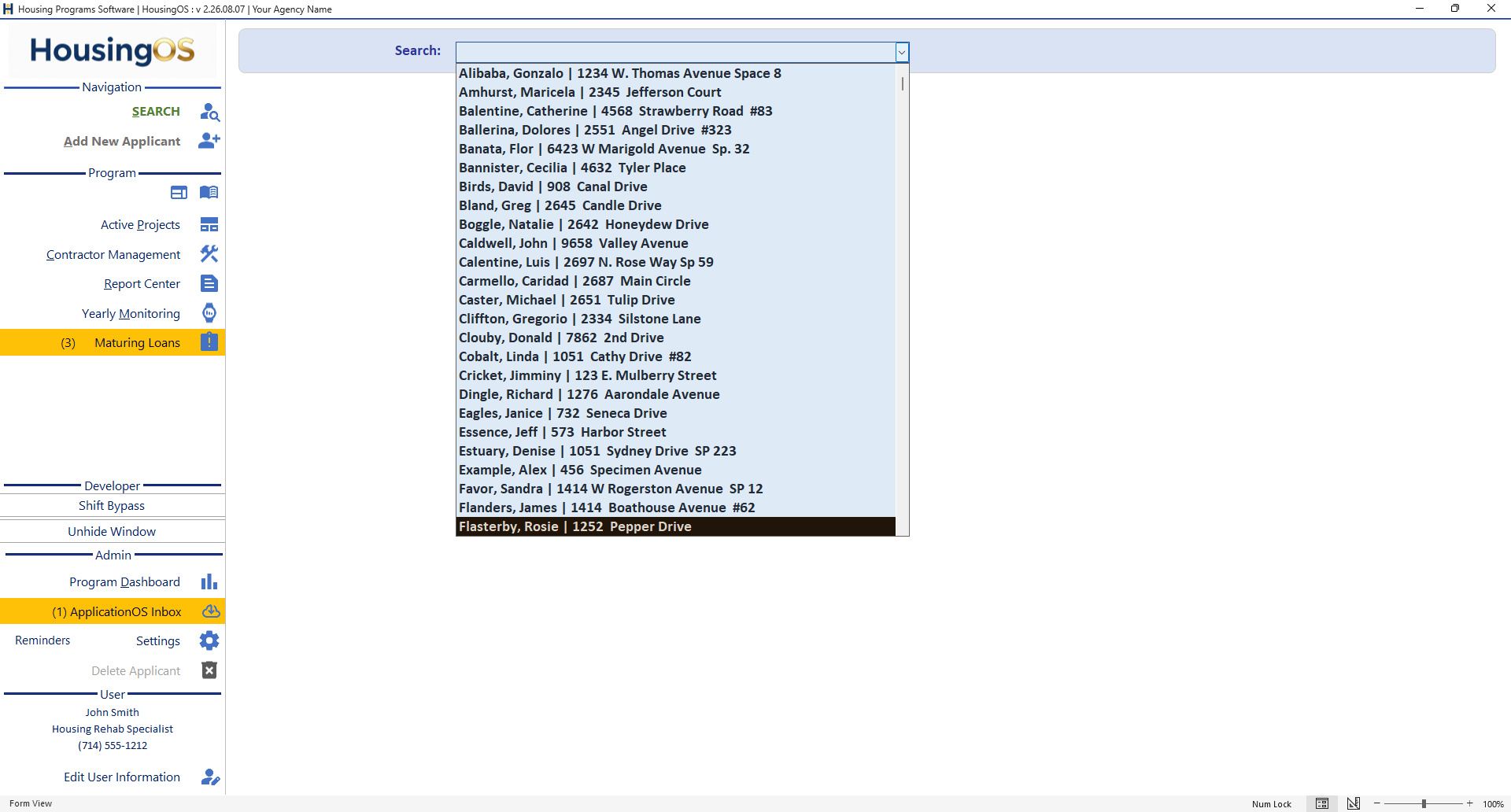
- Click SEARCH (magnifier icon). The header becomes a single Search: box.
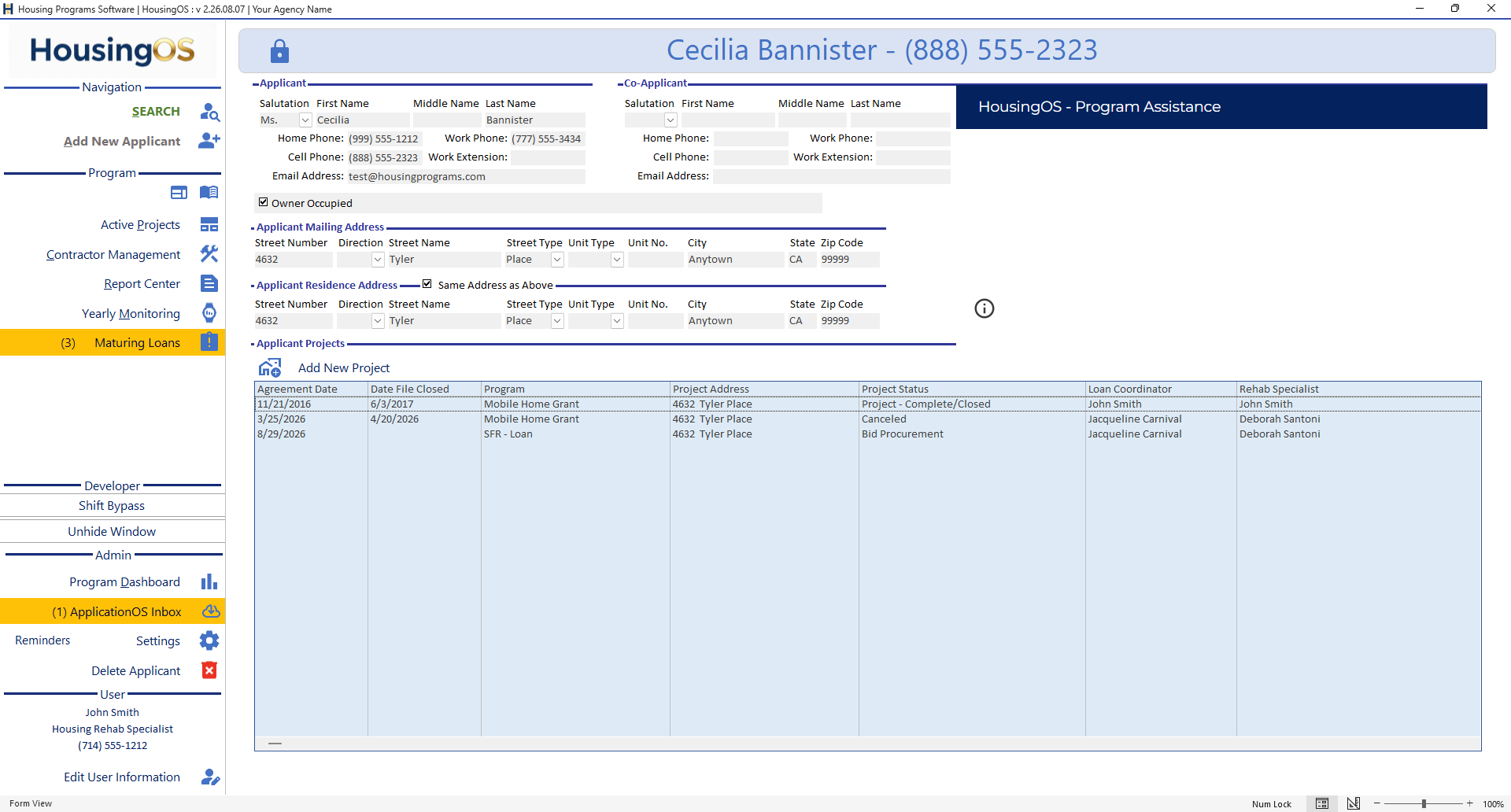
- Start typing a last name — the drop-down lists Last, First | street address and narrows as you type; pick the person and the applicant panel fills, with the header First Last – (phone). Delete Applicant turns red (enabled) once an applicant is selected.
- Other searches on the same panel: Address (residence street), Property Address (the project's property), and Phone [confirm captions — SearchAddress / PropertyAddressSearch / ResidenceSearch / SearchPhone] — each behaves the same way.
- The Applicant Projects grid then lists every project for that applicant (Agreement Date · Date File Closed · Program · Project Address · Project Status · Loan Coordinator · Rehab Specialist). Double-click the project to open its window.
📷
C02-01
 ·
· C02-03 ✅ applicant selected
Part B — Active Projects
- Active Projects opens the Active Projects Status cards — one card per open project (applicant, address, program, status pill with date; Application Review / Environmental Review / Project Management / Project Financials columns with ✓ and initials-badges for who's responsible; the latest log line underneath). SORT by Contact, Status, Date or Program; the side rail counts items needing attention. Click a card to open the project. Use it when you know the address or status but not the name. 📷
C21-02
Part C — From the cards
- Any status card on the dashboard or status reports (▸ C-21) opens its project on click — Maturing Loans, Yearly Monitoring, Behind-Schedule projects etc. If the project window is already open you'll be asked to close it first.
Watch-outs
- The padlock shows whether the applicant panel is locked (search mode) or open for editing (Add New Applicant / unlock). Don't type into a locked panel — unlock first.
- Two people with the same name — the drop-down shows first and last; check the address in the panel before opening a project.
- Project numbers are internal random numbers; search by name/address rather than number. Documents use the file's project ID (e.g. PN-02) from Loan Numbers/Project Setup.
Screenshot shot list
| Shot | What |
|---|---|
| C02-01 | SEARCH with the drop-down open |
| C02-02 | ✅ see C21-02 |
Open items for John
answered by screenshots 08-29— is there still a separate address/phone search, or is the single Search box the only one now?