C-12 · Inspection, Scope of Work and Bidding
Book C — Daily User Guide · Part 4 Construction · draft v1 (2026-08-29)
Who: rehab specialists / construction managers When: the application is approved and the property is ready to be inspected and written up. Where: project window ▸ CONSTRUCTION MGMT tab, which has three sub-tabs: Inspection/Bids (this chapter), Contract Management and Project Management (▸ C-13). 📷
C12-00
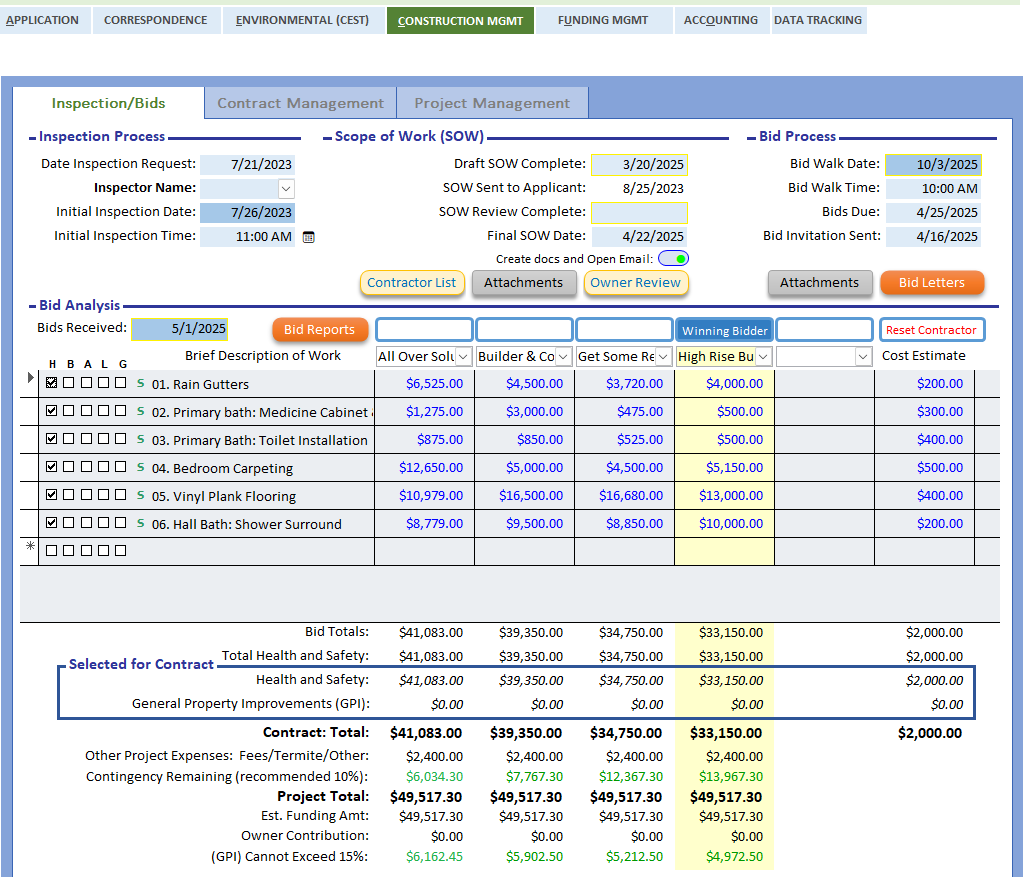 — the whole Inspection/Bids sub-tab.
Needs: contractors already entered in Contractor Management (▸ B-9) — HousingOS will not let you invite or award a contractor who isn't in the database.
What you'll end up with
An inspected property with a written scope of work the owner has reviewed, bid invitations sent (and recorded) to up to five contractors, their bids entered line-by-line in the Bid Analysis grid, and a winning contractor selected with the contract amount set from the items you chose. Every letter and email is saved to the project's 6 – Bidding folder and written to the project log.
Part A — Initial inspection
- In the Inspection Process block enter Date Inspection Request, Inspector Name (a staff member), Initial Inspection Date and Initial Inspection Time. Double-click any date box to stamp today.
- Click the small calendar icon beside the time. HousingOS puts the inspection on the inspector's Microsoft calendar (subject Initial Property Inspection – ‹owners›, location = property address) and logs "Initial Property Inspection scheduled …". If any of the three fields is empty you'll see "Complete Initial Inspection Data" and the missing boxes turn green.
📷
C12-01✅ covered by C12-00.
Part B — Scope of work (work write-up)
- Write the work write-up outside HousingOS as usual, then record the dates in the Scope of Work (SOW) block: Draft SOW Complete, SOW Sent to Applicant, SOW Review Complete, Final SOW Date.
- Contractor List prints the list of contractors invited; Attachments (in the SOW block) opens the Bidding SOW Review Attachments folder for files that go to the owner with the review letter.
- Owner review letter. Set the Create docs and Open Email switch on if the owner should receive it by email, then click Owner Review (emailing needs an email address on the applicant — otherwise "There is no email address for this applicant"). HousingOS confirms "Are you ready to proceed? This will create …", merges the SOW Review Letter from your program's template, saves the PDF to Bidding SOW Review Attachments, emails it if asked, and stamps SOW Review. Anything you put in that folder beforehand is attached too.
📷
C12-02✅ covered by C12-00.
Part C — Invite contractors to bid
- In the Bid Process block enter Bid Walk Date, Bid Walk Time and Bids Due. Files for the contractors go in Bidding Contractor SOW Attachments — the Attachments button in this block opens it.
- Pick up to five contractors in the drop-downs above the bid columns (double-click a name to open that contractor's record). A name that isn't in the database is refused: "Selected Contractor has not been added to the database…".
- Click Bid Letters. HousingOS checks that Inspector Name, Bid Walk Date, Bid Walk Time and Bids Due are all filled (each missing one gets its own "… Is Missing – Please Complete Field on Form"), then opens the Bid Letters dialog:
- choose the letter from the list — Initial Bid Letter, Rescheduled Bid Letter, Thank You, or any letter your agency has added (Manage Letters… edits them, ▸ B-10);
- choose Email, Print Only, or Email and Print;
- tick Homeowner letter to also send the owner the Homeowner Bid Walk Notice.
📷
C12-03Bid Letters dialog. - In the next window pick which contractors to send to (at least one) and click Send. For each contractor HousingOS emails the letter with a calendar invitation for the bid walk and the files in Contractor SOW Attachments, saves a PDF record of the email in the Bidding folder (one per contractor; re-sends keep both copies), stamps Bid Invitation Sent, and logs "Initial Bid Letter emailed to contractors: … Bid Walk Date: … Time: …". With Print Only the records print instead and no email goes out.
📷
C12-04Contractor pick list / sending complete.
Part D — Enter the bids (Bid Analysis grid)
- When bids arrive, enter Bids Received (date) and fill the Bid Analysis grid — one row per work item:
- Brief Description of Work, each contractor's price in its column, and the city's Cost Estimate;
- a category for every row — one of the H B A L G boxes: Health/Safety, Building Code, Accessibility, Lead Paint, General Property Improvement. Leave a row uncategorised and HousingOS asks you to type H, B, A, L or G before you can move on;
- the green S marks items Selected for Contract. H/B/A/L items are selected automatically (you can deselect one); GPI items you select yourself.
Below the grid HousingOS totals each column: Bid Totals, Total Health and Safety, the Selected for Contract box (Health and Safety + GPI) → Contract, then Other Project Expenses (Fees/Termite/Other), Contingency Remaining (recommended 10 %), Project Total, Est. Funding Amt, Owner Contribution, and the (GPI) Cannot Exceed 15 % ceiling. Green = within limits.
📷
C12-05✅ covered by C12-00.
- Bid Reports creates the Bid Review report and the Contractor Bid Summary as PDFs in the Bidding folder and opens them; you'll be prompted for the Bids Received date if it's blank ("Would You Like to Use Today's Date?").
Part E — Award
- Click Winning Bidder above the winning contractor's column — the column turns yellow. HousingOS sets the contract amount to that contractor's selected items, checks the contractor exists in the database, and checks funding: "Estimated funding amount is less than the project total. Enter correct amounts on 'FUNDING MGMT' tab, or reduce the scope of work." — fix one or the other before continuing.
- Reset Contractor clears the choice if you picked the wrong column. Enter Bid Award Date. Send the Thank You letter to the unsuccessful bidders from the Bid Letters dialog (it goes to every contractor you tick).
- Termite bids and contract are entered on the Contract Management sub-tab — see ▸ C-13 Part D.
Continue with ▸ C-13 for contractor verification, the construction contract and Notice to Proceed.
Watch-outs
- Contractor not in the database — add them in Contractor Management first; typing a name here doesn't create one.
- Funding shortfall blocks the award. Update the FUNDING MGMT tab (▸ C-13/C-14) or cut GPI items.
- Re-sending bid letters (reschedule) is fine — pick Rescheduled Bid Letter; both email records are kept.
- Attachments live in folders, not on the form. If a contractor says a file was missing, check Bidding Contractor SOW Attachments on the server.
- "No Document Set-Up For This Coded Name" / "not set up for this Program" — the Word template for that program is missing; ask your agency administrator (▸ B-7).
- "There is no email address for this applicant" — add it on the APPLICATION tab and start over.
Screenshot shot list (Demo backend)
| Shot | Where | What to capture |
|---|---|---|
| C12-00 | Inspection/Bids sub-tab | ✅ have it — covers 01, 02, 05, 06 |
| C12-03 | Bid Letters dialog | letter list, Email/Print options, homeowner tick |
| C12-04 | contractor pick list | 2 contractors ticked |
Video script — "From inspection to award" (target 4 min; could split at Part D)
| # | On screen | Narration |
|---|---|---|
| 1 | CONSTRUCTION MGMT tab | "Construction starts here. Inspection, scope of work, bidding and award all live on this tab." |
| 2 | Inspection fields → calendar icon | "Enter the inspector, date and time, then click the calendar icon — the inspection lands on the inspector's Outlook calendar and in the project log." |
| 3 | SOW dates, attachments folder | "Record the scope-of-work dates. Files for contractors go in the Contractor SOW Attachments folder." |
| 4 | Owner Review | "Owner Review merges the owner's review letter, saves the PDF and can email it." |
| 5 | Contractor drop-downs, bid walk fields | "Pick up to five contractors from your list and set the bid walk and due dates." |
| 6 | Bid Letters dialog → send | "Bid Letters checks the dates, lets you pick the letter and email or print, then sends each contractor the invitation with a calendar invite and the attachments — and saves a PDF record of every email." |
| 7 | Bid Analysis grid | "Enter each bid line by line with a category. Health, code, accessibility and lead items are mandatory; general improvements are your choice. Totals update as you go." |
| 8 | Bid Reports | "Bid Reports produces the review and the contractor summary as PDFs." |
| 9 | Winning Bidder | "Click Winning Bidder over the winning column. The contract amount comes from the selected items, and HousingOS checks it fits the funding." |
| 10 | Outro | "Next: verifying the contractor and issuing the contract." |
Open items for John (this chapter)
Captions / sub-tabs / H-B-A-L deselectanswered 08-29.- Which Attachments button is which: I've assumed SOW-block = SOW Review Attachments (owner) and Bid-Process-block = Contractor SOW Attachments. Confirm. (Second-project shot filed as
C12-00b.)