C-19 · Correspondence and Email
Draft page
Captions marked [confirm] and the "Open items" section are still being verified against the live product.
Book C — Daily User Guide · Part 6 Documents & Communication · draft v1 (2026-08-29)
Who: everyone When: any letter or email to the applicant that isn't a standard program document — information requests, notices, follow-ups — and notes to file. Where: project window ▸ CORRESPONDENCE tab; the Email window that HousingOS opens for any emailed document.
What you'll end up with
Every letter or note recorded as a correspondence row with its date, subject, content, who is copied and when it was sent; the letter merged and saved in 10 – Correspondence; emails sent from HousingOS through your Microsoft 365 account and locked once sent; and an entry in the project log.
Part A — Write a letter
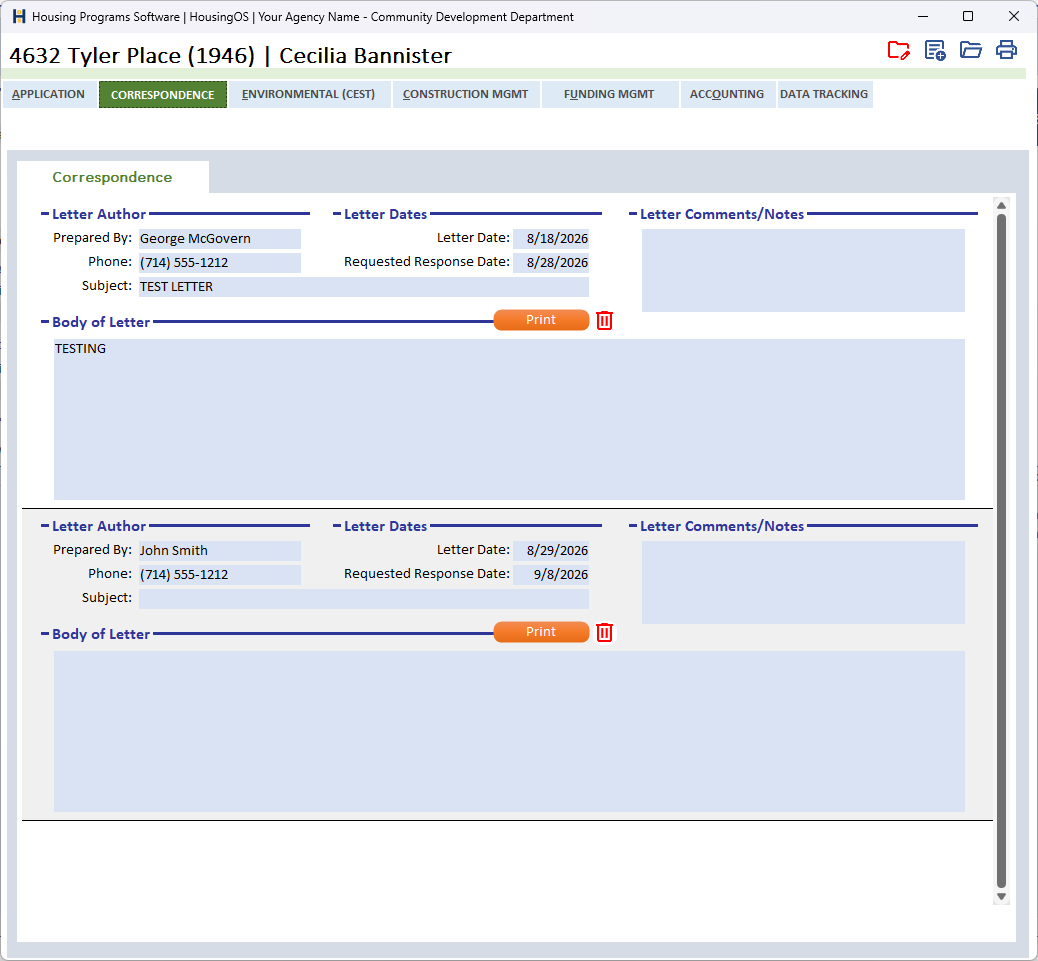
- On the CORRESPONDENCE tab each letter is a block: Letter Author (Prepared By, Phone — from your staff record; Subject, required — it names the saved file: "You must enter a subject for this letter. It will be used to identify your saved letter."), Letter Dates (Letter Date, Requested Response Date), Letter Comments/Notes, and the Body of Letter (spell-check runs when you leave it). 📷
C19-00
 2. Tick CC Rehab Specialist / CC Loan Coordinator if they should be copied on the email.
3. Click Print (orange, on the Body of Letter bar). HousingOS opens Printing Options already filtered to Applicant Correspondence (▸ C-18); pick the letter template (e.g. Additional Information Request), choose Preview or Email, and produce it. The letter is saved as ‹Subject› – ‹Last name› – ‹Address›.docx in 10 – Correspondence and logged with the subject.
📷
2. Tick CC Rehab Specialist / CC Loan Coordinator if they should be copied on the email.
3. Click Print (orange, on the Body of Letter bar). HousingOS opens Printing Options already filtered to Applicant Correspondence (▸ C-18); pick the letter template (e.g. Additional Information Request), choose Preview or Email, and produce it. The letter is saved as ‹Subject› – ‹Last name› – ‹Address›.docx in 10 – Correspondence and logged with the subject.
📷 C19-01 CORRESPONDENCE tab with a row filled and Print Letter.
4. The red trash icon deletes an unsent letter.
5. Checklist request letters arrive here ready-made: Request Letter on the Application Checklist (▸ C-8a) creates the entry with the subject and the list of missing items already in the body. Set the response date, Print, and choose Checklist Request Letter — its table fills with the open items grouped by person.
Part B — Email from HousingOS
- Whenever you choose Email for a document, the Email window opens with To (applicant's email), CC (the ticked staff), Subject and Message pre-filled and the merged PDF in the Attachments list. Add more files with Add Attachment (the picker opens on the project folder; the SOW Review / Bid Review attachment folders are pre-listed when relevant); double-click an item to remove it; Clear empties the list.
- Click Send. If Subject or Message is empty you're asked "Do you want to send anyway or cancel?". The email goes through your Microsoft 365 account (the status line shows Authentication successful → Email sent successfully!). If a file can't be attached the email is not sent ("Email not sent: One or more attachments could not be included.").
📷
C19-02Email window with attachments. - Classic Outlook users may instead see the message open in Outlook for review; send it from there — HousingOS still records the send.
Part C — Sent is final
- Once a correspondence row has been sent it greys out: content can't be edited ("This correspondence has already been sent, so its content can no longer be changed."), it can't be deleted, and it can't be sent again. Add a new row for a follow-up.
- Response dates / notes [confirm — RDate, N_/C_/P_/F_ comment boxes] on the row stay editable so you can record the reply.
Watch-outs
- No applicant email → "There is no email address for this applicant" — add it on the APPLICATION tab first.
- Sign-in prompt — the first email of the day may ask you to sign in to Microsoft 365; complete it and click Send again.
- Attachments must exist on disk — a file moved after it was listed blocks the send.
- Note to File rows never email or print; they're for the record only.
Screenshot shot list
| Shot | What |
|---|---|
| C19-00 | ✅ have it |
| C19-02 | Email window with attachments |
Video script — "Sending a letter" (target 1½ min)
| # | On screen | Narration |
|---|---|---|
| 1 | New row | "Add a row: date, subject, and what you need from the applicant." |
| 2 | Print Letter → Printing Options | "Print Letter opens Printing Options on the correspondence templates — preview it, or email it." |
| 3 | Email window → Send | "The email opens pre-addressed with the PDF attached. Send goes through your Microsoft 365 account and is recorded." |
| 4 | Greyed row | "Once sent, the row is locked — history stays history." |
Open items for John
captionsconfirmed 08-29. Where are CC Rehab Specialist / CC Loan Coordinator and Note-to-File on this tab (not visible)?