C-1 · Getting Around — Navigation Form and Dashboard
Draft page
Captions marked [confirm] and the "Open items" section are still being verified against the live product.
Book C — Daily User Guide · Part 1 Getting Around · draft v1 (2026-08-29)
Who: everyone, first day. 📷
C01-01
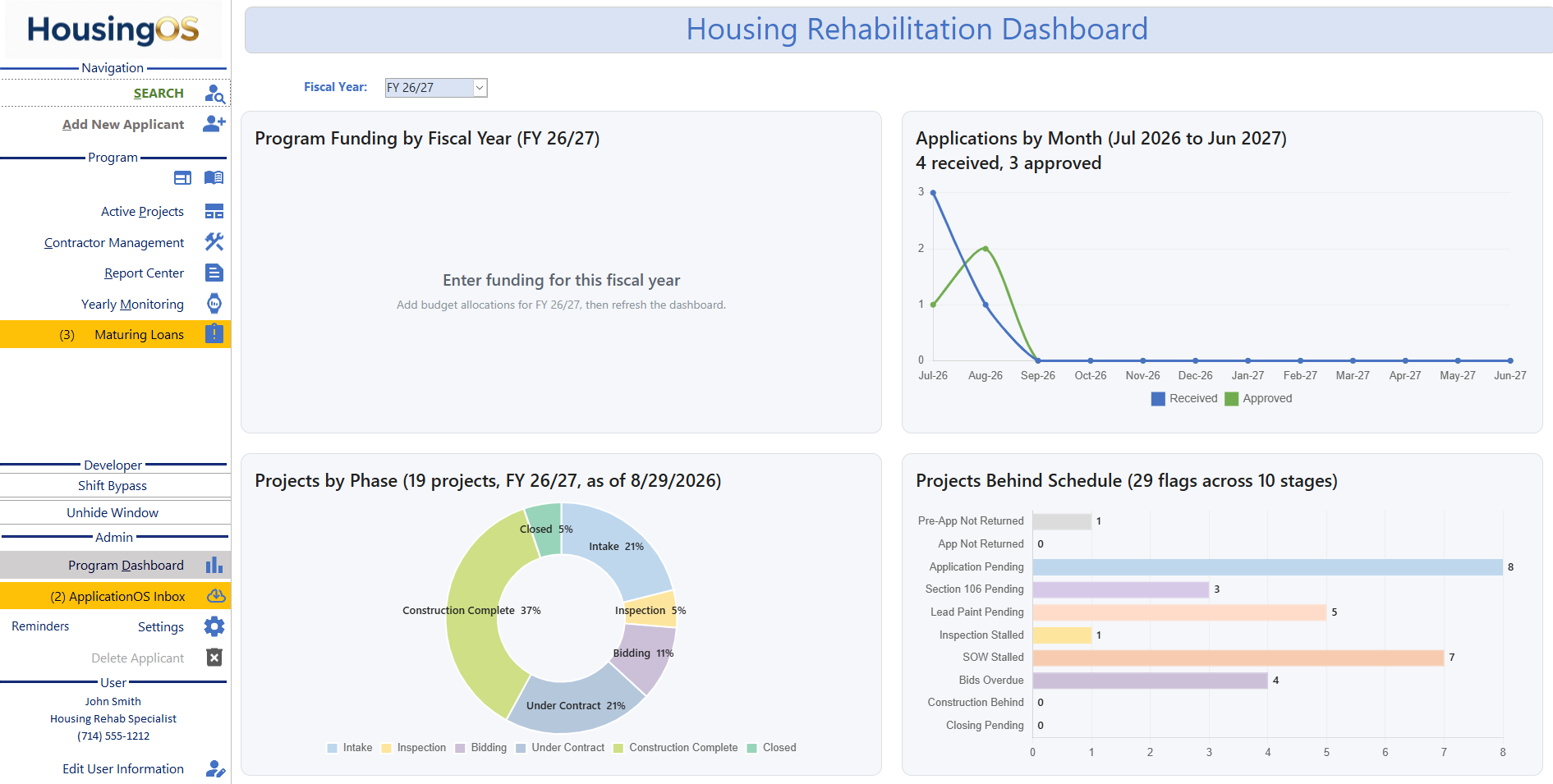 — the HousingOS landing page.
Starting HousingOS
- Open HousingOS from the desktop or Start menu. The splash shows the version; if an update is available you're prompted to install it — say yes (an update takes under a minute and keeps everything). A backend update required message means your administrator must run the Backend Updater first (▸ B-2a).
- Sign in when asked. Your name, title and phone show at the bottom of the left menu (User block); Edit User Information updates them and your Microsoft 365 sign-in (needed for calendar and email).
- If ApplicationOS applications are waiting, the ApplicationOS Inbox may open automatically (per-user setting).
The Navigation form
The left menu is always there; the centre panel changes with what you click.
| Section | Item | What it does | Chapter |
|---|---|---|---|
| Navigation | SEARCH | find an applicant by name / address / phone | C-2 |
| Add New Applicant | start a paper/phone application | C-3 | |
| Program | Program Guidelines · Program Website (icons) | open the agency's program document / web page | — |
| Active Projects | list of open projects | C-2 | |
| Contractor Management | contractor records and licence checks | C-12 / B-9 | |
| Report Center | program-wide reports and the report builder | C-21 | |
| Yearly Monitoring | annual occupancy/insurance monitoring | C-17 | |
| (n) Maturing Loans | loans maturing within the reminder window — yellow when any | C-16 | |
| Developer | Shift Bypass · Unhide Window | Unhide brings back a hidden window; the rest is for support | C-25 |
| Admin | Program Dashboard | this dashboard | C-1 |
| (n) ApplicationOS Inbox | portal applications waiting — yellow when any | C-4 | |
| Reminders | Periodic Reminders (yearly housekeeping) | below / B-14 | |
| Settings | agency settings (administrators) | B-4 | |
| Delete Applicant | permission-gated | C-3 | |
| User | name · title · phone · Edit User Information | your own staff record | B-3 |
The centre panel shows either the dashboard, the applicant panel + Applicant Projects grid (after SEARCH / Add New Applicant), the Inbox, or a card (Maturing Loans, Yearly Monitoring, Active Projects).
The dashboard (Program Dashboard)
- Fiscal Year selector drives all four cards.
- Program Funding by Fiscal Year — budget allocations; empty until the administrator enters funding for the year (Enter funding for this fiscal year).
- Applications by Month — received vs approved, Jul–Jun.
- Projects by Phase — Intake · Inspection · Bidding · Under Contract · Construction Complete · Closed.
- Projects Behind Schedule — flags across 10 stages (Pre-App Not Returned → Closing Pending). Hover a bar for the count; bars aren't clickable — use Active Projects / status cards to find the projects. 📷
C01-03
The project window
Opening a project (double-click in the Applicant Projects grid, or from a card) opens its own window titled ‹address› | ‹applicant›, with tabs APPLICATION · CORRESPONDENCE · ENVIRONMENTAL (CEST) · CONSTRUCTION MGMT · FUNDING MGMT · ACCOUNTING · DATA TRACKING and four icons top-right: [confirm the first two], project folder, print (Printing Options). Most tabs have sub-tabs: APPLICATION → App HOME · App Review · Property Profile · Property Insurance; App Review → Application Review · Financial Review · HousingOS Workroom; ENVIRONMENTAL → Lead Paint · SHPO · Flood · Toxic · Noise · Radon; CONSTRUCTION MGMT → Inspection/Bids · Contract Management · Project Management; FUNDING MGMT → Project Funding; ACCOUNTING → Project Disbursements · Loan Servicing. One project window at a time — close it before opening another from a card.
Periodic Reminders (Admin ▸ Reminders)
📷 C01-02
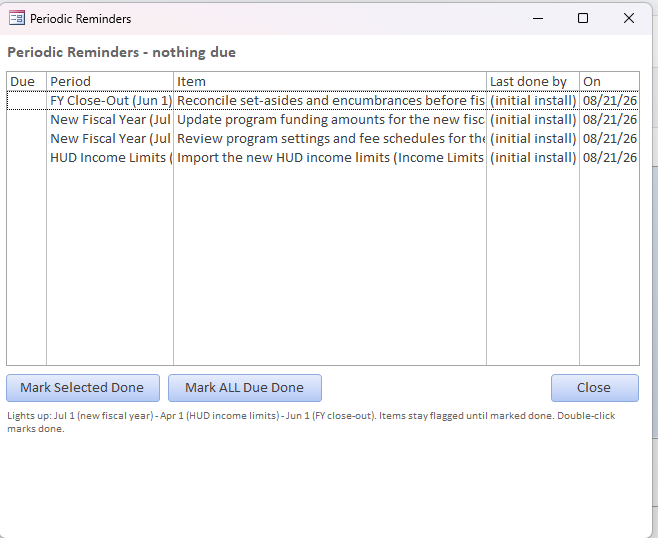
A checklist of yearly housekeeping. Items light up on their trigger date and stay flagged until someone marks them done (Mark Selected Done, Mark ALL Due Done, or double-click); the grid records who did it and when.
| Lights up | Item |
|---|---|
| Apr 1 | HUD Income Limits — import the new HUD income limits (▸ B-6) |
| Jun 1 | FY Close-Out — reconcile set-asides and encumbrances before fiscal year end |
| Jul 1 | New Fiscal Year — update program funding amounts (▸ B-5) |
| Jul 1 | New Fiscal Year — review program settings and fee schedules (▸ B-4/B-5) |
Daily users will see it; the tasks belong to the agency administrator (▸ B-14).
Screenshot shot list
| Shot | What |
|---|---|
| C01-01/02/03 | ✅ have |
| C01-01b | ✅ full-window dashboard ( |
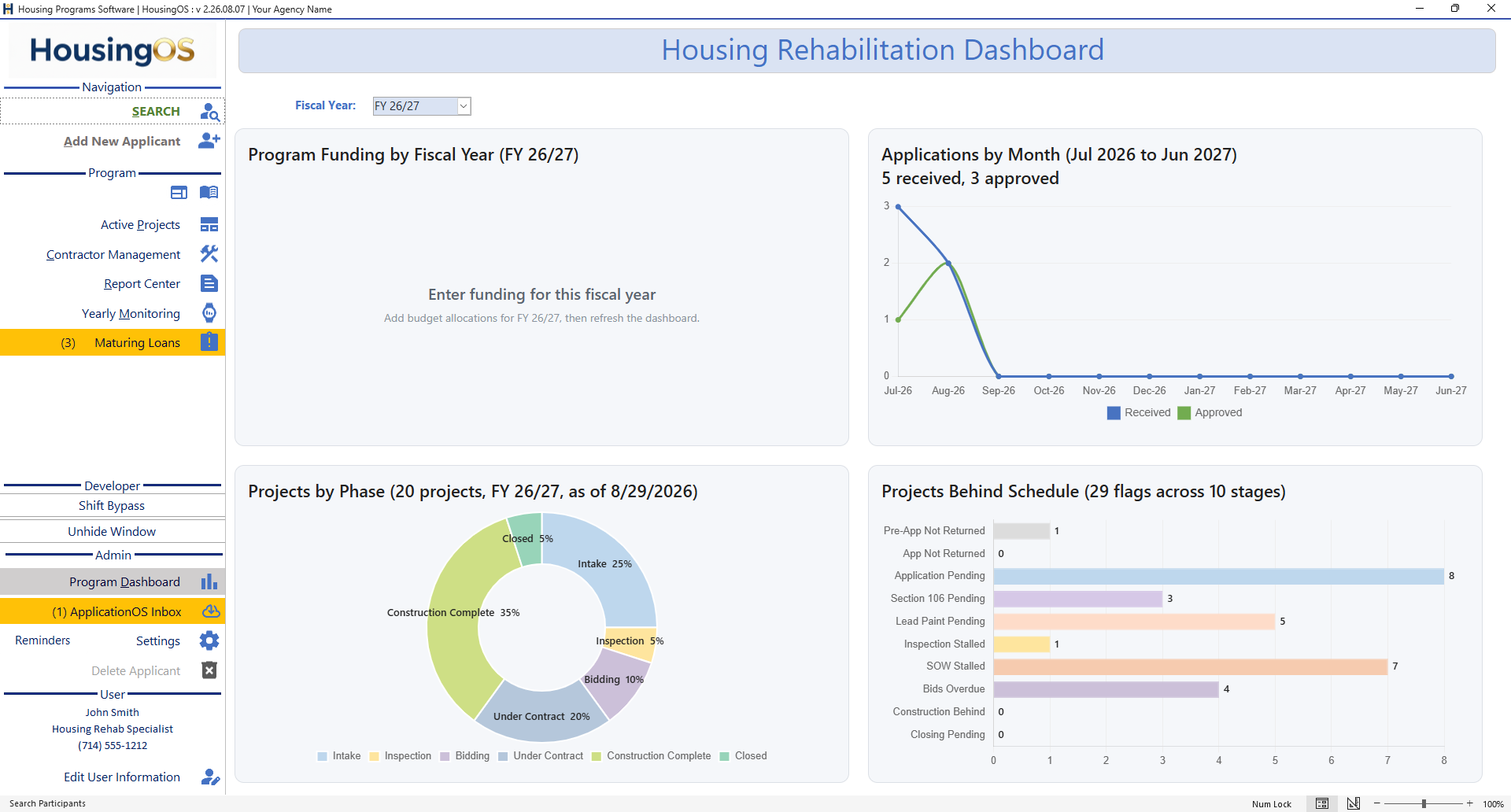 ) |
) |
Open items for John
- The two left-hand header icons on the project window (comments? document?).