C-21 · Report Center, Status Reports and Excel Exports
Draft page
Captions marked [confirm] and the "Open items" section are still being verified against the live product.
Book C — Daily User Guide · Part 7 Reporting · draft v1 (2026-08-29)
Who: everyone; program managers most Where: Navigation form ▸ Report Center (program-wide); project window ▸ print icon (this project, ▸ C-18); Navigation ▸ Active Projects / status cards.
What you'll end up with
Program-wide reports (status, loan monitoring, quarterly, funding, IDIS) previewed or exported; the status cards for every active project; and your own spreadsheet exports built from a field picker.
Part A — Report Center
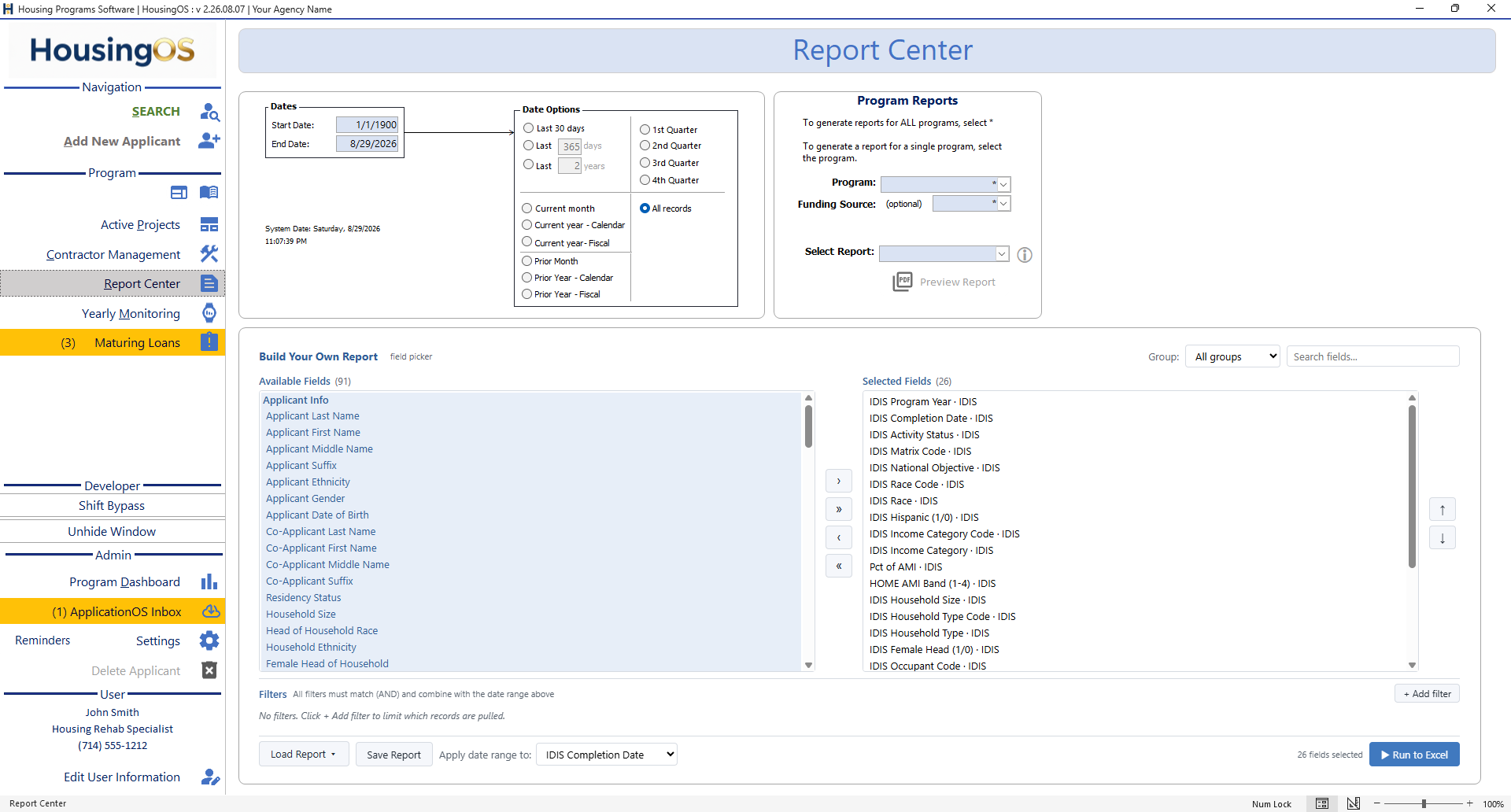
- Click Report Center. Set the Dates (Start/End) or pick a Date Option — Last 30 days / Last N days / Last N years, Current month / year (calendar or fiscal), Prior month / year, 1st–4th Quarter, or All records.
- Under Program Reports choose the Program (
*= all) and optionally the Funding Source, then Select Report — Active Status Report, Current Funded Projects Report, Outstanding Loans Report, Paid Off Loans — and click Preview Report. The report opens in preview (e.g. Paid Off Loans Report grouped by program with rate/term, funding, payments, balances, maturity and payoff dates); print or export from there. "No records to display." means the filter matched nothing. 📷C21-00
 ·
· C21-01 ✅ report list · C21-04 ✅ Paid Off Loans report
Part B — Status cards
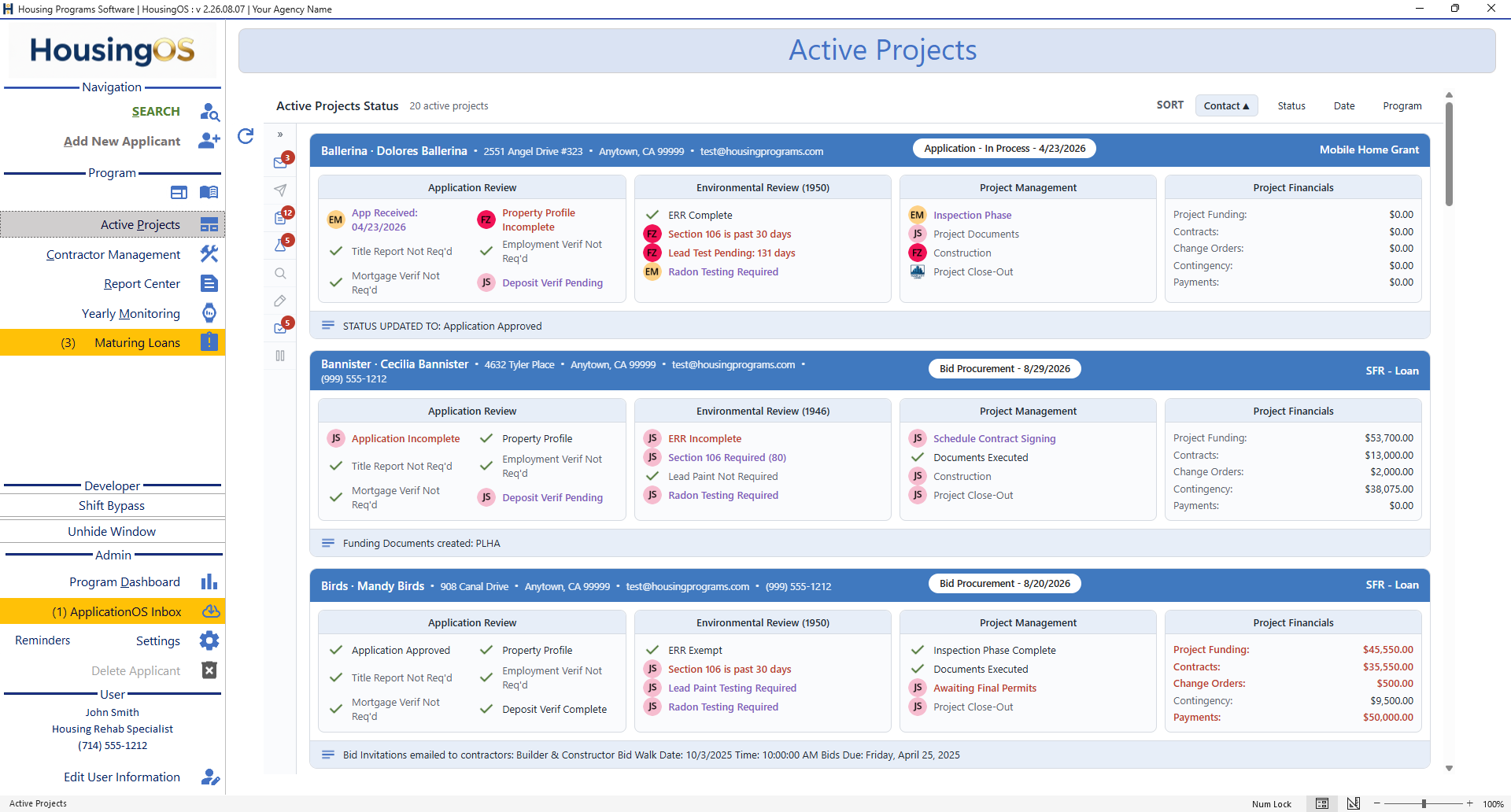
- Active Projects (Navigation form) shows one card per active project: applicant, address, contact, program, status pill with its date; four columns — Application Review, Environmental Review, Project Management, Project Financials (Project Funding · Contracts · Change Orders · Contingency · Payments) — with ✓ for done items and initials badges (colour-coded by staff) for open ones, plus the latest log line. An amber "N docs outstanding" chip in the Application Review panel heading shows how many Application Checklist items the household still owes (▸ C-8a); open the project to work them. SORT by Contact / Status / Date / Program; the side rail counts items needing attention; ↻ refreshes. Click a card to open the project (close any open project window first).
📷
C21-02
Part C — Build your own report (Excel)
- Build Your Own Report (lower half): move fields from Available Fields (91, grouped — Applicant Info, …, IDIS; Group filter and Search fields…) to Selected Fields with › » ‹ «, order them with ↑ ↓, add Filters (all must match), choose Apply date range to (which date field the range above uses), and click Run to Excel. Save Report / Load Report keep named field sets (the IDIS presets are loaded this way, ▸ C-22).
- Per-application Excel — from a project, the print icon's Printing Options list includes the application export to Excel [confirm name] for a single file.
📷
C21-03Report builder with fields ticked.
Watch-outs
- Dates are inclusive and apply to the field you chose — a report "missing" projects usually has the wrong date field selected.
- Excel must be installed on the workstation for the builder and exports.
- Cards read saved data — if a figure looks stale, open the project and save, then Refresh.
Screenshot shot list
| Shot | What |
|---|---|
| C21-00/01/02/04 | ✅ have them |
Video script — "Reports" (target 2 min)
| # | On screen | Narration |
|---|---|---|
| 1 | Report Center | "Pick a report; only its options appear. Set dates or status and click Print Report." |
| 2 | Status cards | "Status cards give every active project at a glance — status, staff, money — click one to open it." |
| 3 | Report builder | "Build your own: tick the fields, choose the date field and range, Run — it opens in Excel." |
Open items for John
reports list / cards buttonconfirmed 08-29. The name of the per-application Excel export (project print icon?).