C-6 · Income Determination
Draft page
Captions marked [confirm] and the "Open items" section are still being verified against the live product.
Book C — Daily User Guide · Part 2 Applicants & Intake · draft v1 (2026-08-29)
Who: loan coordinators / caseworkers When: after the household is entered (▸ C-5) and income documents are in the project folder — whether typed from paper, or imported from the portal (▸ C-4). Time: 15–30 minutes per household, less with the document analyzers. Where: Project Navigation ▸ Application Processing ▸ Financial Review tab. The top block shows the limits and result; below it four sub-tabs: Income, Bank Deposits, Assets, Debt/Expenses (▸ C-7).
What you'll end up with
A verified annual household income, compared against the HUD income limit for the household size and program year, giving the income category (e.g. Low / Very Low / Extremely Low) and % of area median that decide eligibility. HousingOS does every calculation; your job is to enter (or confirm) the figures and send/receive the verification letters.
HousingOS can read the documents for you — pay stubs and bank statements — and draft the figures onto the cards. The AI never decides eligibility; it drafts, you review, HousingOS calculates.
Before you start
- Household members are listed with dates of birth. When you enter a DOB for someone 18 or older, HousingOS asks "Does this Household Member receive income?" — answer Yes to mark them an income earner. Only income earners appear in the member pick-lists on the income cards (▸ C-5).
- Documents are filed in the project folder:
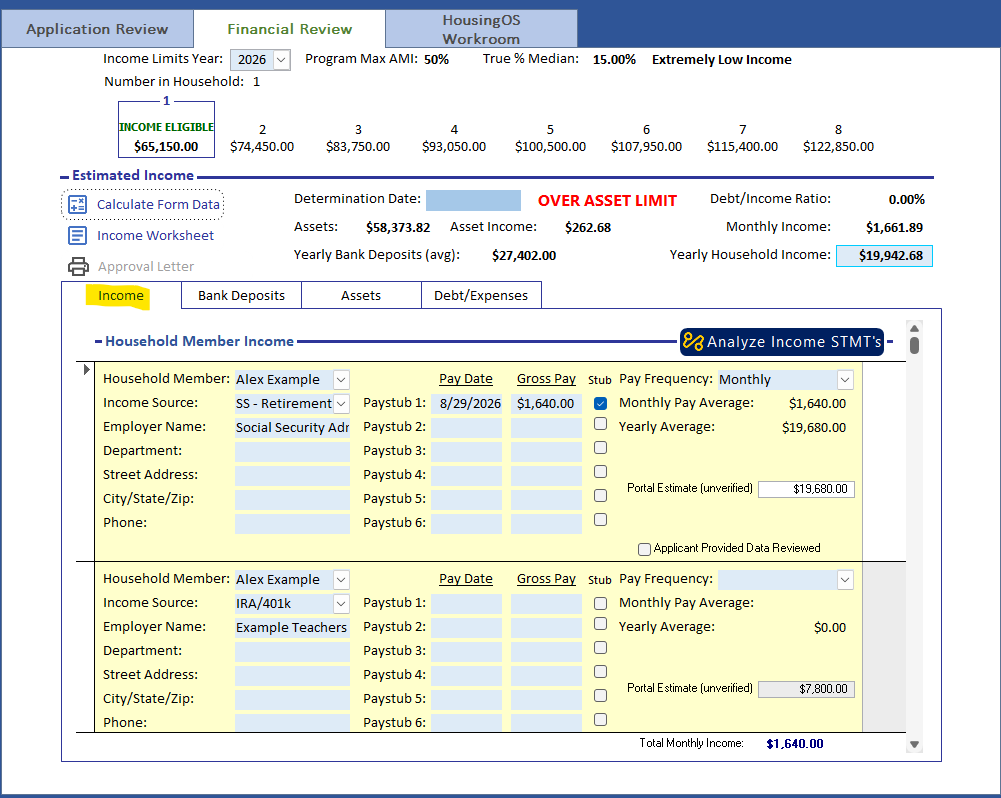
Application\PaystubsandApplication\Bank Statements(portal imports land inApplication\Web Uploads\Pay Stubsand…\Bank Statements— move or copy them across [confirm: does the analyzer read Web Uploads directly?]). - Income Limits Year and Number in Household are set at the top of Financial Review — the limit lookup depends on both. Double-click the year box to stamp the current year. The row of boxes 1–8 shows the income limit for each household size at the Program Max AMI; the box for your household size is outlined and reads INCOME ELIGIBLE when the household qualifies.
Part A — Employment and other member income (Income tab · Household Member Income)
One record per member + employer. For each:
-
Choose the Household Member and the Income Source (Employment, SS – Retirement, IRA/401k, …). Enter the Employer Name, Department, Street Address, City/State/Zip and Phone — these feed the verification letter.
-
Enter Pay Date and Gross Pay from up to six pay stubs (Paystub 1–6, newest first) and pick the Pay Frequency. Tick the Stub box beside each figure you have verified against the document. HousingOS averages the stubs you filled in and converts to monthly:
| Frequency | Monthly = average × |
|---|---|
| Weekly | 52 ÷ 12 |
| Bi-weekly | 26 ÷ 12 |
| Bi-monthly (twice a month) | 24 ÷ 12 |
| Monthly | 1 |
| 9-month / 10-month (school year) | 9 ÷ 12 / 10 ÷ 12 |
| Yearly | ÷ 12 |
Monthly Pay Average and Yearly Average update immediately, and Total Monthly Income at the foot of the tab refreshes. For a portal import the applicant's own figure shows as Portal Estimate (unverified) beside the card; once you have checked the documents, tick Applicant Provided Data Reviewed.
📷 C06-01 ✅ have it
 .
.
-
Or let HousingOS read the stubs. Click Analyze Income STMT's (top right of the Income tab). - If the project already has a Paystubs folder you're offered Import Entire Folder / Pick Files / Cancel; otherwise a file picker opens (PDFs or photos; several photos of one stub are combined into a PDF for you). - Confirm "Analyze N paystub file(s)? Claude reads each stub and drafts the gross pay amounts onto the Household Member Income card; you review and confirm." - A progress window shows each file; you can cancel (nothing is written on cancel). - The summary reports PDFs analyzed, stubs found, income records updated, and any Review flags. Processed files move to a
Processedsubfolder so a re-run only picks up new ones. - The AI writes gross pay per stub, newest first (six kept), blank-fills the frequency and employer details, and matches the member by name (primary applicant if unsure). Check every figure against the stub, tick each Stub box, then Applicant Provided Data Reviewed. 📷C06-02Analyze Paystubs confirmation and summary. -
Employment verification letter. Tick Employment Verification (needs member + source selected), then click Employment Verification Letter. HousingOS stamps today's date as Sent (or asks "The sent date already exists. Would you like to update with today's date?"), merges the letter from your agency's template, opens it for preview, saves it to the project folder, and logs "Employment verification mailed ‹date› to ‹employer› for ‹member›". When the reply arrives, double-click Verification Received to stamp the date.
Part B — Bank deposits and accounts (Bank Deposits tab · Household Member Banking Information)
One record per bank account, holding its statements and deposits. Deposits are what HousingOS uses to find income that isn't on a pay stub (benefits, support, cash income) and to verify the pay stubs.
- Select the account in the Account Deposits list, or click Add Account: Name on Account (household member), Account Type, Bank Name, Account No., Department, address. Save the account before adding statements ("Enter and save the bank account first, then add its statements."). Two markers can follow an account's name in the list: << UNCLASSIFIED (a deposit group still needs a label) and << GAP IN STATEMENTS (its statements do not run back to back). The Application Checklist (▸ C-8a) counts an account's statements as received only when they are consecutive and reach the program's required number, so the gap marker is also why a statement row is still open.
6a. Two rows for one account? A bank sometimes prints its own name differently from one statement template to the next, and the analyzer created a second account for the same last-four digits. Select the duplicate, click Merge Into…, tick the account(s) to fold in the list, choose the account that keeps everything, and Merge. Its statements, deposits, and labels move to the kept account and the duplicate is deleted; the merge is logged. New statements match on the last four digits first, so the split will not recur.
- Statements. Click Add Statement for each statement period, or double-click a statement to open its Deposits window. Each deposit line has a payer group and a label:
| Label | Counts as income? | Use for |
|---|---|---|
| Income | Yes | wages, benefits, pensions, regular support |
| Other Income | Yes — also creates an income record on the member's income card | cash income, rental, side work |
| Transfer | No | moves between the household's own accounts |
| Not Income | No | refunds, reimbursements, loan proceeds |
| Unclassified Income | Counted until you classify it | what the analyzer couldn't decide |
Relabel the payer group once and it applies to that payer on every statement. Wrong side of the ledger? Flip to Credit / Flip to Debit moves a line between deposits and withdrawals; Move Deposit re-attaches a line to another statement. Every edit recomputes the statement's income sum and the account's annualized deposit income.
📷 C06-03 ✅ have the tab
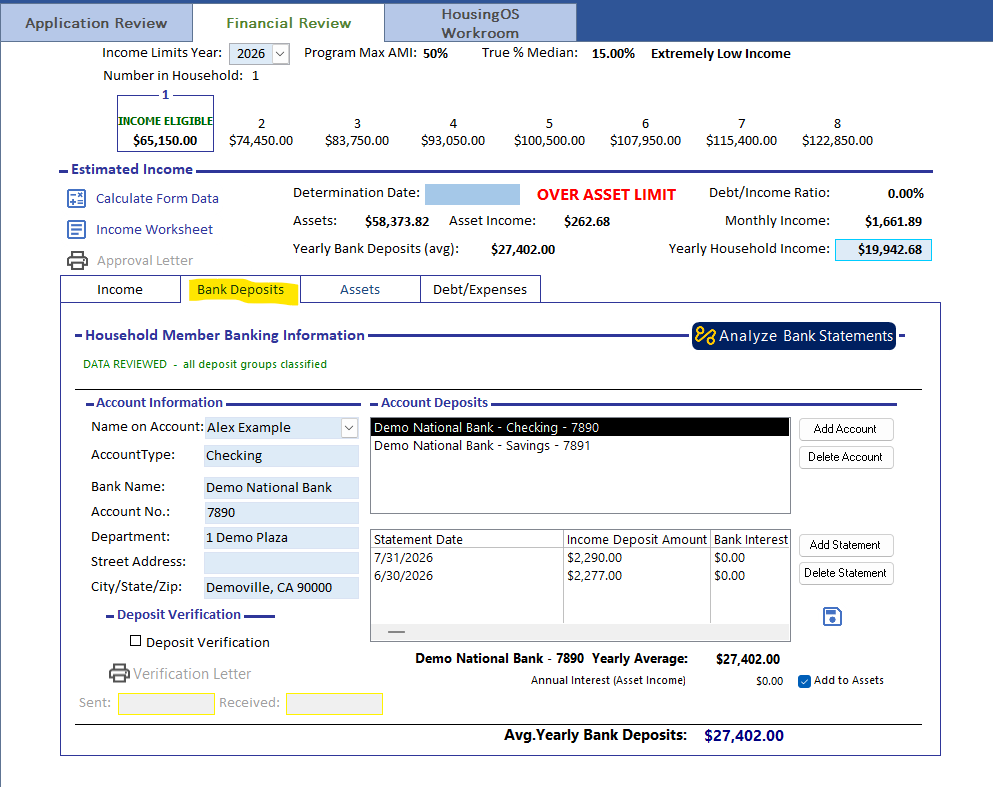 ; still need the Deposits window (
-b).
-
Or let HousingOS read the statements. Click Analyze Bank Statements (top right of the tab). Choose Analyze New Only (recommended) or Reprocess All (replaces drafts and your manual label edits). The run continues in the background — you can keep working; a progress popup shows the files and offers Cancel. When it finishes you get a summary and, if the extracted deposits don't add up to the statement's own total, a list of Reconciliation flags to check by hand.
-
The banner tells you when you're done. Under the tab title, NEEDS CLASSIFICATION: … shows in red while any payer group is still Unclassified Income; DATA REVIEWED – all deposit groups classified shows in green once every group has a label. Each account shows its Yearly Average and Annual Interest (Asset Income); Avg. Yearly Bank Deposits at the foot is the household figure.
-
Add to Assets. Tick Add to Assets on an account whose balance should also be treated as an asset (savings, money-market); the newest statement balance flows to the Assets card.
-
Deposit verification letter works like the employment letter: tick Deposit Verification (needs member + bank name), click Verification Letter — the Sent date is stamped — and fill Received when it comes back.
Part C — Assets (Assets tab)
One record per asset (savings, CDs, stocks, retirement, real property). For each: Household Member, Financial Institution (type a new name and HousingOS offers to add it to the list), Current Cash Value, and the actual income the asset produced (interest, dividends). Accounts ticked Add to Assets on the Bank Deposits tab appear here automatically with their newest balance.
HousingOS then applies your agency's income-from-assets method — HOTMA or Part 5, chosen by the administrator (▸ B-4) — with one rule: if total assets are at or below the threshold ($50,000 HOTMA / $5,000 Part 5, adjustable), the actual income counts; above it, the greater of actual income and imputed income (total assets × the passbook rate) counts. You don't choose the method per asset.
The tab's banner shows ASSET LIMIT: $…, turns red and bold — OVER ASSET LIMIT — when the household's countable assets exceed the program's limit (the same warning appears on Financial Review), or NO ASSET LIMIT if the program has none.
📷 C06-04 Assets tab with the limit banner.
Part D — The determination
-
At the top of Financial Review, confirm Number in Household and Income Limits Year, then click Calculate Form Data. HousingOS combines Monthly Income (× 12), Yearly Bank Deposits (avg) and Asset Income into Yearly Household Income, looks up the HUD limit for that size and year at the Program Max AMI, and fills:
- the income category beside True % Median (e.g. Extremely Low Income),
- True % Median itself,
- the INCOME ELIGIBLE box for the household size, and the Debt/Income Ratio.
Enter the Determination Date. Income Worksheet prints the calculation; Approval Letter becomes available once the determination is complete.
📷
C06-05Application Processing income block after Refresh.
-
Verification received. Tick Income Verification Received and Bank Verification Received as your final attestation. The Household Composition list stays amber for a member until every income surface is reviewed and every verification letter for them is back; it clears on its own — nothing to set by hand (▸ C-5).
Watch-outs
- Analyzers draft; you decide. Never accept an AI-drafted figure without opening the document. Review flags and reconciliation flags are there for a reason.
- "Reprocess All" erases your label edits on the bank card. Use Analyze New Only unless you mean to start over.
- "Bank statements are still being analyzed" — the paystub analyzer waits for a running bank analysis; let it finish (or cancel it from the progress popup).
- Unclassified income counts. Leaving a group unclassified overstates income; the red banner is your reminder.
- Six stubs maximum. The card keeps the six newest; older ones roll off on the next analyzer run.
- Income limits missing? If the category comes back blank, the HUD limits for that year haven't been imported — ask your agency administrator (▸ B-6).
- Changing household size or income year changes the limit — always Refresh afterwards.
- Deleting a bank account is only possible with the Delete Account button; the Delete key and record selector are blocked so an account and its statements can't be wiped by accident. Delete Statement removes one statement and its deposits.
Screenshot shot list (Demo backend, H1 family-of-4)
| Shot | Where | What to capture |
|---|---|---|
| C06-01 | Income tab | ✅ have it |
| C06-02 | Analyze Paystubs | the Yes/No confirmation and the completion summary (two shots -a, -b) |
| C06-03 | Bank Deposits tab ✅ · Deposits window (still needed) | deposits grid with labels; red NEEDS CLASSIFICATION banner if possible |
| C06-04 | Assets tab | ✅ have it |
| C06-05 | Financial Review top block | ✅ covered by C06-01 (crop) |
Video script — "Determining household income" (target 4 min; consider splitting: 6a pay stubs, 6b bank statements)
| # | On screen | Narration |
|---|---|---|
| 1 | Application Processing tab | "Income determination lives on the Application Processing tab: three cards — employment income, bank data, assets — and the result up top." |
| 2 | Household list, DOB prompt | "Members 18 and over are asked whether they receive income; only income earners show on the cards." |
| 3 | Income card, type two stubs | "For each member and employer, enter gross pay from up to six stubs and the pay frequency. HousingOS averages and converts to monthly and yearly." |
| 4 | Analyze Paystubs | "Or click Analyze Paystubs. HousingOS reads the PDFs and drafts the amounts for you — newest first. Check each against the stub." |
| 5 | Verification letter | "Tick Employment Verification and click the letter button. The letter is merged, saved, and logged with today's date." |
| 6 | Bank card, Analyze Statements | "Bank statements work the same way. Analyze New Only reads what's new and drafts every deposit with a payer group." |
| 7 | Deposits window, relabel | "Classify each payer once — Income, Other Income, Transfer, Not Income — and it applies to every statement. The banner turns green when nothing is left unclassified." |
| 8 | Assets tab | "Assets: enter each asset's value and actual income. HousingOS applies your agency's HOTMA or Part 5 rule, and the banner warns if the household is over the program's asset limit." |
| 9 | Refresh, category | "Back on the tab, confirm household size and income year and click Refresh. HousingOS looks up the HUD limit and sets the income category and percent of median." |
| 10 | Outro | "Next: credit and creditors." |
Open items for John (this chapter)
Captionsconfirmed from screenshots 08-29. Which figure feeds "Yearly Household Income"? Screenshot: 1,661.89 × 12 = 19,942.68, so bank deposits are shown for comparison, NOT added — confirm so I state the rule correctly.- Do the analyzers read
Web Uploads\Pay Stubs/…\Bank Statementsdirectly after a portal import, or must staff move files intoApplication\Paystubs/Application\Bank Statements? - Full list of category labels (screen shows Extremely Low Income; the others?).
- Should Part B (bank) be split into its own chapter? It's the longest section and has the most UI.