C-4 · Portal Intake — Importing ApplicationOS Applications
Draft page
Captions marked [confirm] and the "Open items" section are still being verified against the live product.
Book C — Daily User Guide · Part 2 Applicants & Intake · draft v1 (2026-08-29)
Who: Power Users and Administrators (the Inbox is hidden from other users). Emailing applicants from the Inbox needs the Loan Coordinator role. When: an applicant has applied online through your agency's ApplicationOS portal. Time: 2–3 minutes per application, plus document download. Needs: your agency's ApplicationOS subscription and portal connection set up by your agency administrator (▸ B-11).
What you'll end up with
A complete HousingOS project — applicant, co-applicant, household members, income sources, bank accounts, assets, creditors, property details — filled in from what the applicant typed online, with every document they uploaded saved into the project folder. Anything the importer wasn't sure about is written to the project log for you to review, so you never have to guess what came from the portal.
You do not create the applicant or project by hand first. The Inbox does that (compare ▸ C-3, which is for paper/phone applications).
Opening the Inbox
-
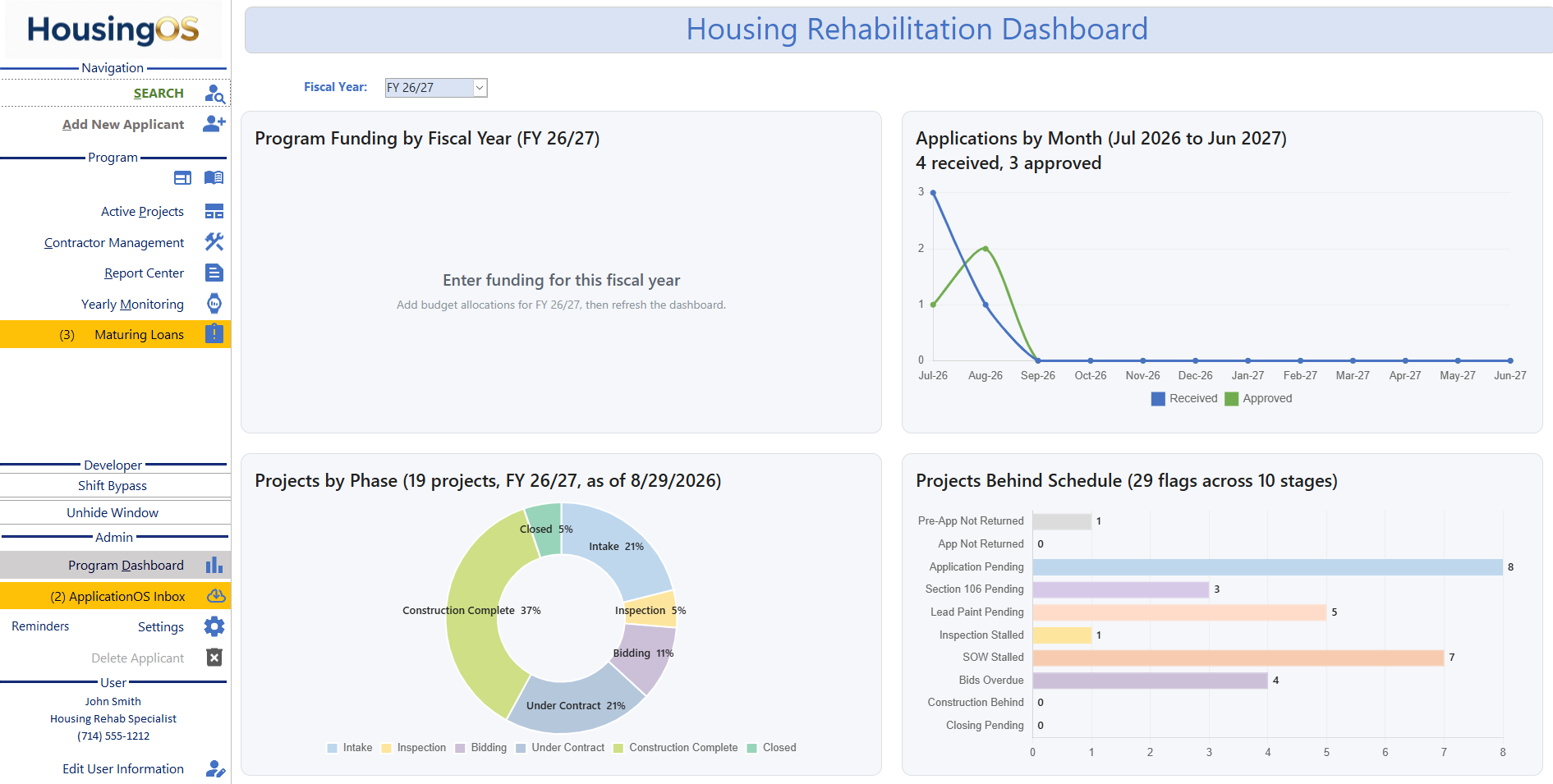
On the Navigation form, under Admin, click ApplicationOS Inbox. The Inbox opens in the center panel with the header ApplicationOS Inbox. The number in front of the button — e.g. (2) ApplicationOS Inbox, highlighted yellow — is how many applications are waiting; if any are waiting when you start HousingOS, the Inbox can open automatically (a per-user setting). 📷
C04-01Navigation form with the Inbox button and badge. -
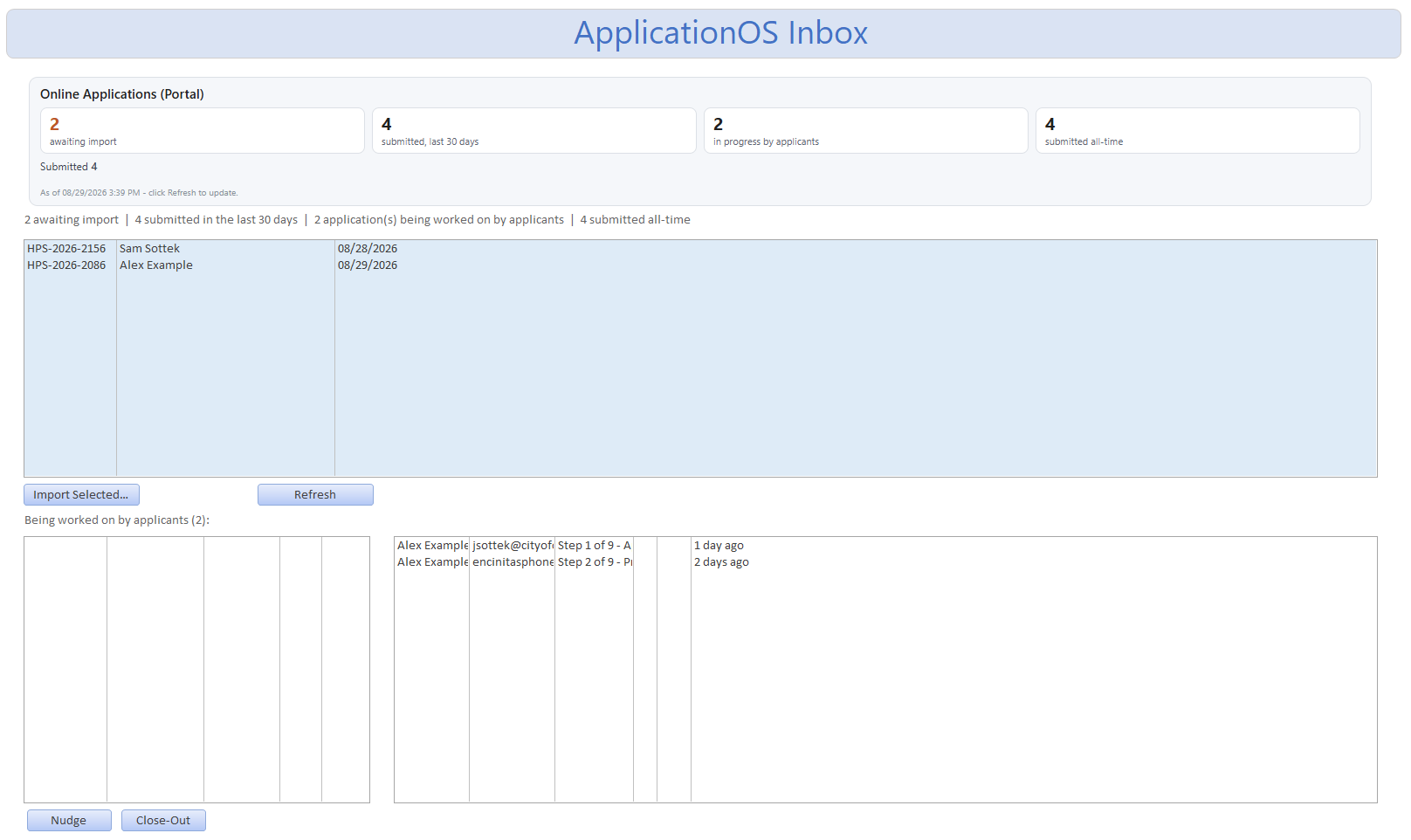
The Inbox has three lists and a summary strip: - Online Applications (Portal) tiles — awaiting import · submitted last 30 days · in progress by applicants · submitted all-time, with the as-of time. - Pending applications (large upper list) — submitted, not yet imported. Columns: reference number (e.g. HPS-2026-2156), applicant name, submitted date. - Being worked on by applicants (n) (lower right) — started but not submitted. Columns: name, email, progress (Step n of 9 – name), documents uploaded, when last nudged, last saved. - Pre-applications (lower left list) — waiting-list sign-ups, if your program uses a waiting list. - Summary line: "N awaiting import | N submitted in the last 30 days | N being worked on by applicants | N submitted all-time", plus the portal stat tiles. 📷
C04-02The Inbox with all three lists populated (demo data).
Click Refresh to re-read the portal at any time.
Part A — Import a submitted application
-
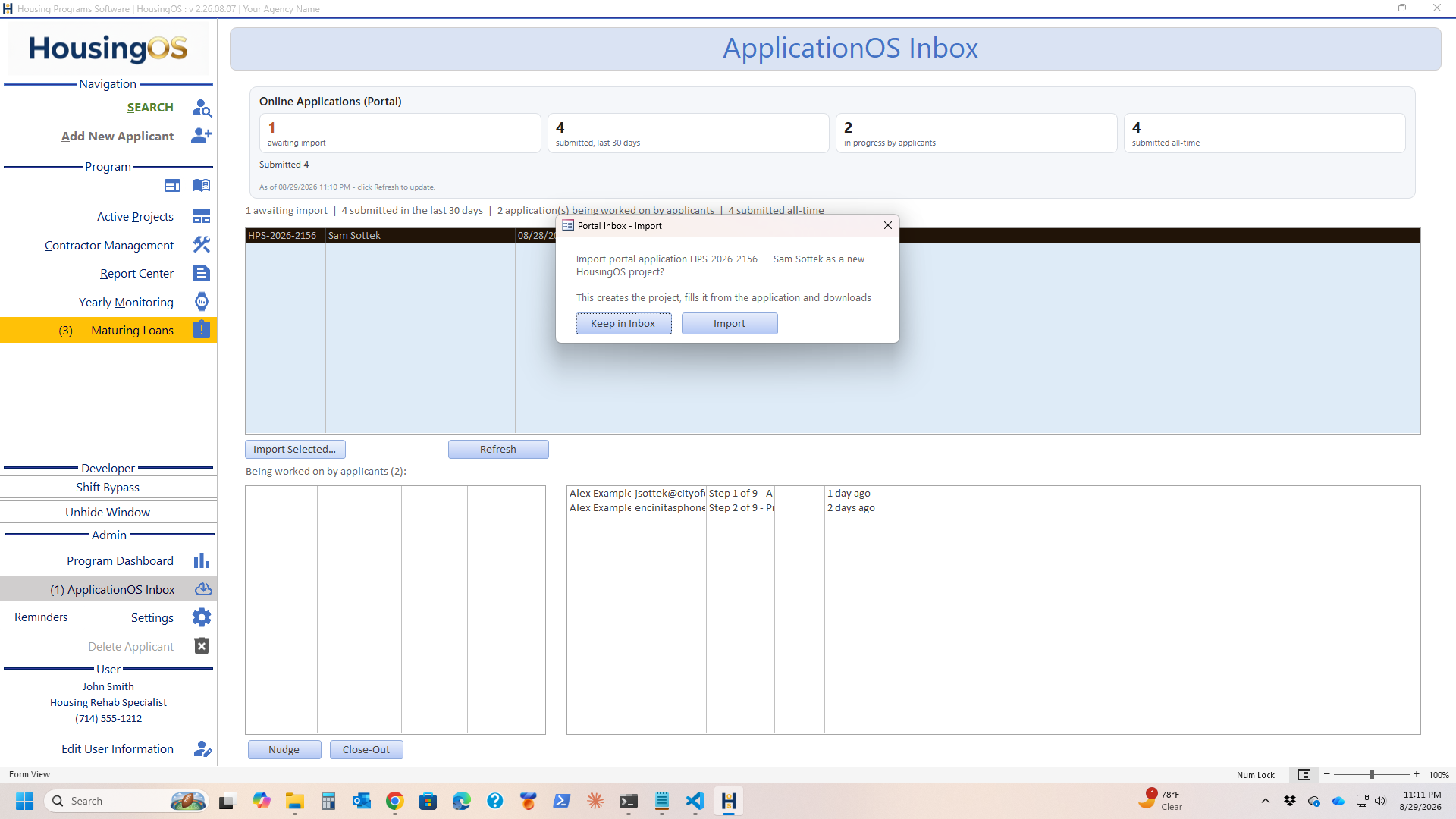
Select the application in Pending and click Import Selected… (or double-click it). You're asked "Import portal application ‹ref› – ‹name› as a new HousingOS project?" — Keep in Inbox backs out with nothing written; Import proceeds.
-
Possible duplicate? If the applicant's name or property address matches someone already in HousingOS you'll see "Portal application ‹ref› (‹name›) may match an EXISTING applicant" with a numbered list of candidates and how many prior projects each has. - Type the number of the match to add this as a new project under the existing applicant (the right choice for a returning client). - Type 0 if it is a different person — a new applicant record is created. - Cancel stops the import; nothing is created. 📷
C04-03Possible-duplicate prompt. -
HousingOS builds the project and fills it from the application (the hourglass shows while it works), then opens the Project Setup dialog pre-filled with the applicant's details. 📷
C04-04Project Setup dialog after a portal import. -
In PROJECT SETUP, choose the Program, Program Terms, Funding Source, Project Status, Loan Coordinator and Rehab Specialist (same dialog as ▸ C-3 step 5 — all fields are required). Date File Opened is already set to the portal submission date. Then click Save, and answer the Project Folder Setup prompt — choose Create New Folder so the applicant's documents have somewhere to go.
- Save finishes the project and creates the project folder.
- Cancel abandons the import: the project is removed and the application stays pending in the Inbox, so you can import it again later. You'll see "Project setup was cancelled and the project deleted."
- Closing the dialog with the X (or Esc) is treated as Cancel: you get the same named confirmation; answer Yes to back out (application stays pending) or No to return to the dialog.
-
Documents download. If the applicant uploaded documents you'll see "N uploaded document(s) will now download into the project's Application Web Uploads folder. Please wait for the completion message." Click OK and wait. Files are filed by type —
Pay Stubs,Bank Statements,Photo IDs,Tax Returns,Award Letters,Ownership,Insurance,Profit and Loss,Signed Application,Additional Documents, and so on. -
The completion message confirms: "Imported portal application ‹ref› as project ‹number›. Filled N field(s). Details and review items are in the project log." followed by the document count. The application drops off the Pending list and the new project is selected on the Navigation form. 📷
C04-05Completion message. -
Review the project log (▸ C-20) before working the file. The importer writes what it couldn't place cleanly, for example: - applicant-stated income and how they said they'd verify it; - "Household size mismatch: applicant said 4, portal member list has 3"; - lien/judgment, rents rooms, owns other property, applied elsewhere answers; - tax-return declarations (who files jointly with whom); - referral source, preferred language, driver's-license state. Then continue with ▸ C-5 Household and ▸ C-6 Income, where you'll verify the imported figures against the downloaded documents. Imported rows are flagged for review so you can see what still needs a staff check.
Part B — Applicants who haven't finished (In progress)
These people started an application online and stopped. Each row shows how far they got (step n of 9) and how many documents they've uploaded.
- Open — double-click the row to read the draft as the applicant left it. Use this before calling them to help.
- Nudge — with the row selected, click Nudge. An email opens in your mail program, addressed to the applicant, telling them which step they're on and giving the link to continue. Send it (or edit first). The list then shows nudged today. Loan Coordinators only.
- Close-Out — for applications that will never be finished. You'll be asked: "Close out the in-progress application for ‹name›? This creates a project in HousingOS marked "Did Not Submit Application" with whatever the applicant provided (for the close-out letter), then removes the draft from the portal. The applicant will no longer see it online, and the email address is freed to apply again later." Answer Yes, complete PROJECT SETUP and Save. A summary of how far they got is written to the project log, their documents are downloaded, and the draft is removed. Send the close-out letter from Correspondence (▸ C-19).
📷
C04-06In-progress list with the Nudge and Close Out buttons.
Part C — Pre-applications (waiting list)
Double-click a pre-application to import it as a waiting-list project. The completion message reads "Imported pre-application PRE-‹n› as waiting-list project ‹number›." The project's waiting-list status is set for you. If it was already imported you'll be told the existing project number and asked whether to continue.
Watch-outs
- "The Portal Inbox is available to Power Users and Administrators." — ask your agency administrator for the role (▸ B-3).
- "ApplicationOS is not part of this HousingOS subscription." — your agency hasn't licensed the portal; nothing to do on your side.
- "Portal import is not configured yet." — the portal connection hasn't been set up (▸ B-11).
- Import failed while … — the message names the step. The application stays pending and any half-built project is removed automatically, so simply fix the cause (usually the portal being unreachable) and import again. If the message says a partial project may remain, tell your administrator the project number before re-running.
- "WARNING: could not mark it imported on the portal" — the project was created but the application still shows as Pending. Don't import it a second time; refresh later or tell your administrator.
- No project folder yet? If the applicant uploaded nothing, the project is created with No Project Folder; attach one later from the Project tab (▸ C-3 step 8). If documents were uploaded but the folder didn't exist, the completion message tells you — open the project so the folder is created, then use Download portal documents on the project [confirm where this button lives].
- Don't retype what the portal gave you. Fix a wrong imported value in place and clear its review flag; retyping loses the link to the portal answer.
- Re-importing an application onto a project that was already imported is possible from the project itself, and will ask before overwriting — use it only if the applicant re-submitted.
Screenshot shot list (Demo backend only)
| Shot | Where | What to capture |
|---|---|---|
| C04-01 | 1 - Navigation |
✅ crop of the Admin block from |
 |
| C04-01x | confirmation |
|
| C04-01x | confirmation |
 |
| C04-02 |
|
| C04-02 | frmPortalInbox | ✅ have it
 |
| C04-03 | import prompt | Possible-duplicate InputBox with 1–2 candidates |
| C04-04 |
|
| C04-03 | import prompt | Possible-duplicate InputBox with 1–2 candidates |
| C04-04 | frmProjectSetup | opened by the import, pre-filled (✅ manual-add version in C03-03; portal version optional) |
| C04-05 | completion message | "Imported portal application … Filled N field(s)" |
| C04-06 | frmPortalInbox | In-progress list, Nudge + Close Out buttons |
Use the Demo agency and the H1 family-of-4 sample application so the duplicate prompt and documents both appear. Save to HousingOS Help\images\C04\.
Video script — "Importing a portal application" (target 3 min)
| # | On screen | Narration |
|---|---|---|
| 1 | Navigation, badge visible | "When applicants apply online, their applications land in the ApplicationOS Inbox. The badge tells you how many are waiting." |
| 2 | Inbox open | "Three lists: submitted applications ready to import, applications still being worked on, and pre-applications for the waiting list." |
| 3 | Select pending, click Import | "Select an application and click Import." |
| 4 | Duplicate prompt | "If the name or address matches someone you already have, HousingOS asks. Pick the match to add a new project under them, or zero for a new person." |
| 5 | Hourglass → Project Setup | "HousingOS creates the project and fills in everything the applicant entered — household, income, bank accounts, property. Choose the program and staff, then Save. Delete here cancels the import and leaves the application in the Inbox." |
| 6 | Document download message | "Uploaded documents download into the project folder, sorted by type — pay stubs, bank statements, IDs." |
| 7 | Completion message | "The confirmation shows the new project number and how many fields were filled." |
| 8 | Project log | "Open the project log first. Anything the importer wasn't sure about is written here — a household-size mismatch, stated income, tax filing notes." |
| 9 | In-progress list, Nudge | "For applicants who stalled, Nudge opens a ready-made email with the link to continue. Close Out records the attempt and frees their email address." |
| 10 | Outro | "Next: verifying household composition and income." |
Open items for John (this chapter)
Inbox captionsconfirmed 08-29 (Import Selected… / Refresh / Nudge / Close-Out). Is the empty lower-left list the pre-applications list? Should it have a label like the in-progress one?- Where end users run the document re-download (
DownloadPortalDocumentsForCurrentProject) — is there a button, or is that a support-only step? - Is the "open Inbox automatically on startup" setting user-visible (where)?