The home screen and the property
Home: one group per property
The home screen lists every unit assigned to you, grouped by property. Each group header shows the property name and address, how its units stand ("4 units · 1 inspected · 1 in progress · 2 to do"), and chips for overdue, today and in progress. Tap a header to fold or unfold the group; groups with work in progress or due today start open. Collapse all / Expand all sits at the top.
Inside a group, the units still to do come first, then the finalized ones under Inspected. Each row shows the unit, the date it is due or scheduled, and "overdue" when it is late.
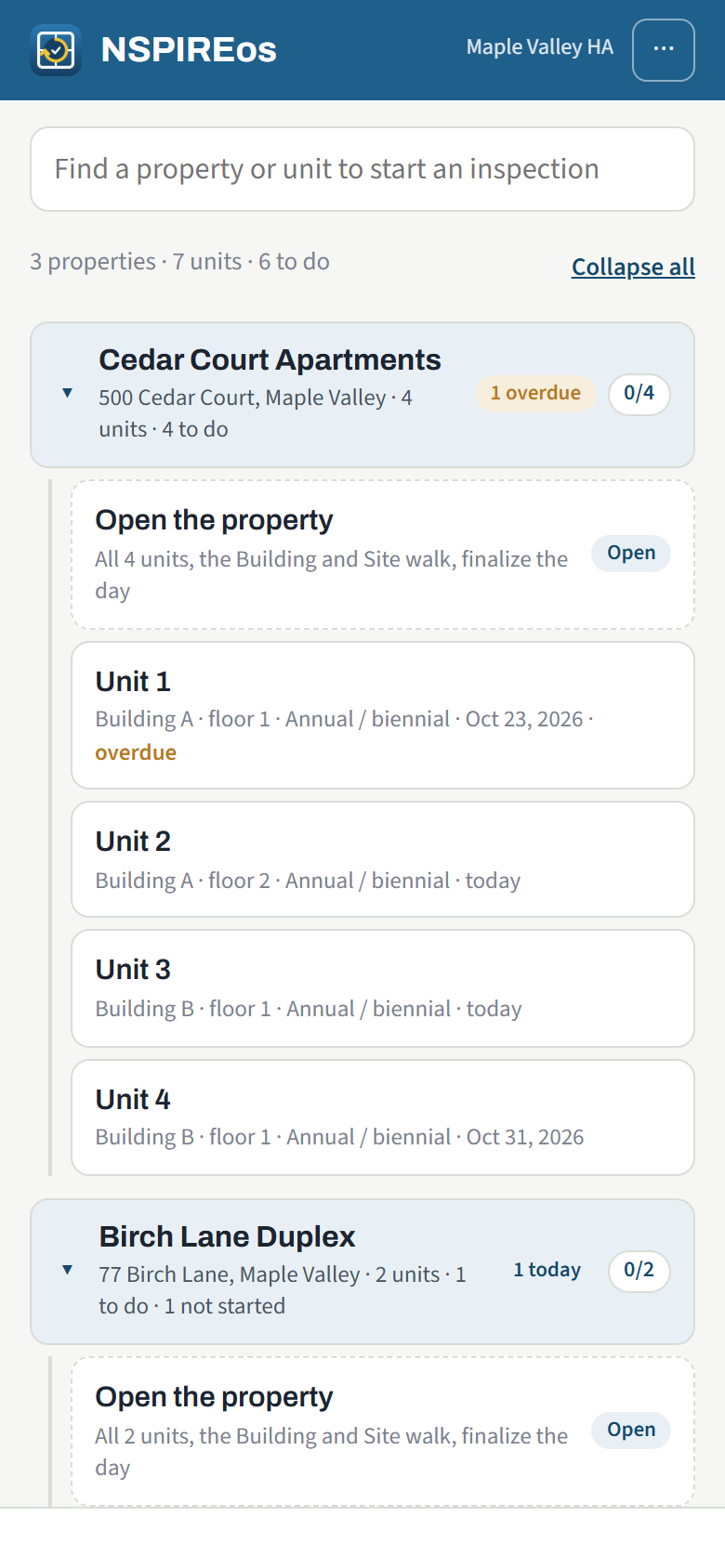
The search box at the top finds any unit at the agency by address, unit number, tenant or property name. If the office has turned off "inspectors may schedule", you can only start units the office scheduled for you.
The property screen
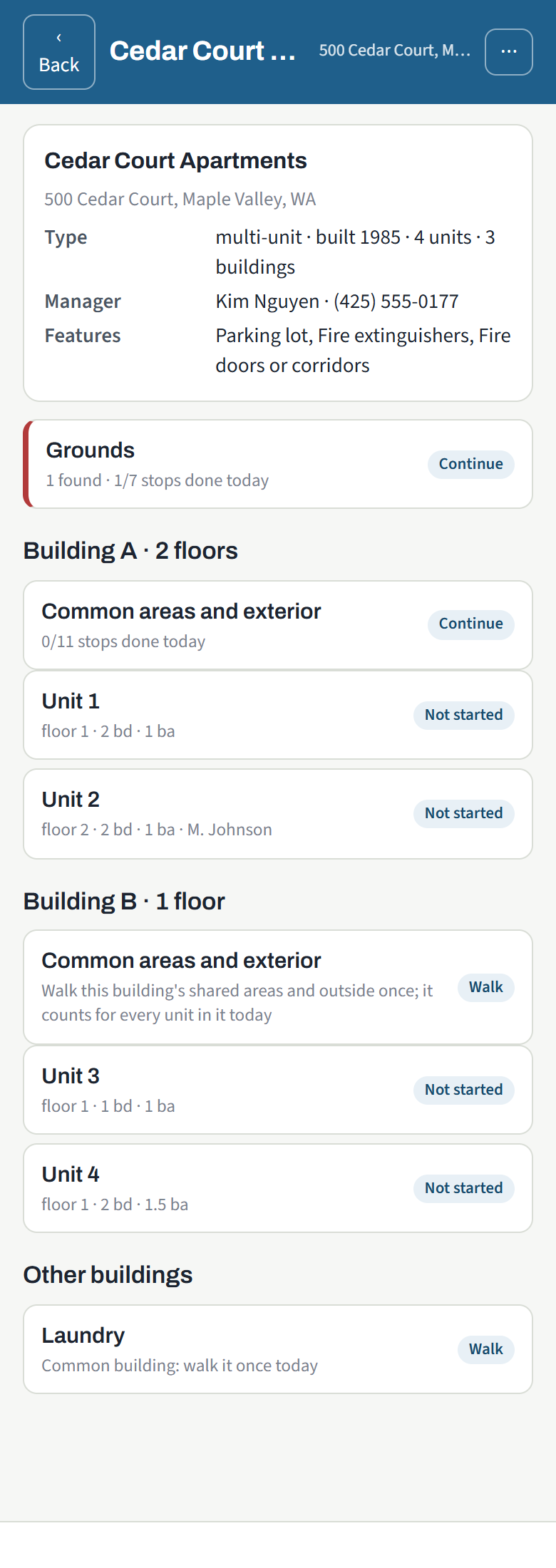
For a property with more than one unit, Open the property shows the whole day in one place:
- Grounds: the shared site walk for the property (grounds, walkways, parking, exterior lighting). One per property per day; inspectors who share a property share this walk.
- Each building: its own walk row (common areas and exterior), then its units, then Finalize Building A once its units are ready.
- Units not in any building, and Other buildings (laundry, office, pool) listed by the office.
Buildings
A property can be one house, or several buildings labeled A, B, 1, 2 or by street number. A stand-alone unit is its own building. Each building's common areas and exterior are walked with that building, and the building gets its own report. The grounds stay with the property.
If a building is missing, add it from the ⋯ menu on the property screen: Add a building asks for the label, the kind (residential, or a common building such as laundry or office), the number of floors and, if it has one, its own street address. The office can also set these up in advance.
Floors
A unit's floor shows beside its number. If the office turned on "Group units by floor", a building's units are listed under Floor 1, Floor 2 and so on. You can correct a unit's floor on its Start screen.