Walking a unit
Start
Tap a unit and the Start screen confirms what the office has on file before the walk begins.
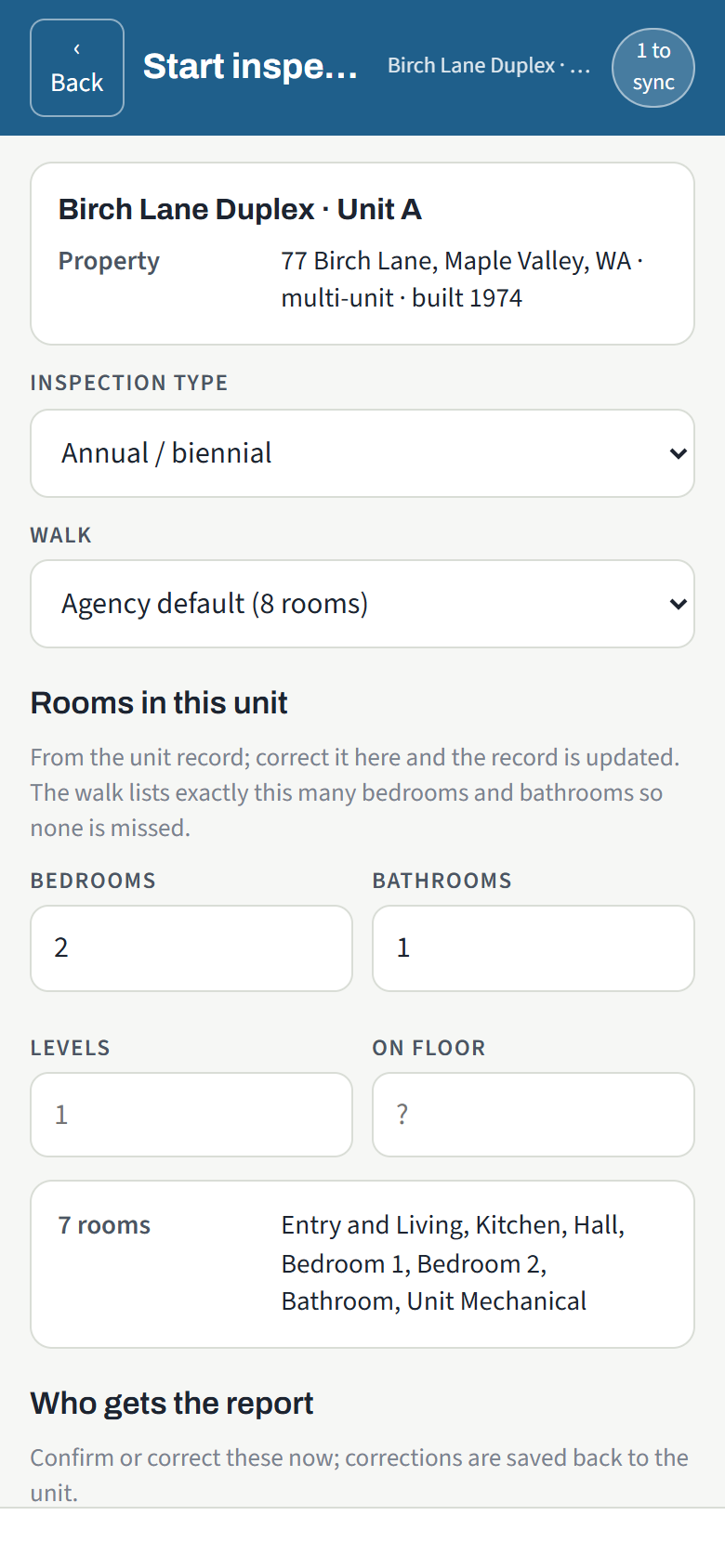
- Inspection type: Initial, Annual / biennial, Special, Re-inspection or Quality control.
- Walk: the agency's default room list, or one of your own saved templates.
- Rooms in this unit: bedrooms, bathrooms, levels and the floor, from the unit record. Correct them here and the record is updated. The walk lists exactly that many bedrooms and bathrooms so none is missed; "1.5" bathrooms gives a Bathroom and a Half bath; two levels adds Stairs.
- Who gets the report: the manager, owner and tenant addresses on file, and whether the tenant's copy goes out in English or Spanish. Corrections are saved back to the unit.
- Owner readiness walk: when the owner walked the unit with the readiness checklist before you, a card says so. Whether it lists what they flagged is an agency setting. Nothing is prefilled; your walk is your own.
- Quality control: a QC walk opens with the original inspection's rooms but none of its findings. Walk it fresh; the report compares the two walks when you finalize.
Tap Begin the walk and it opens.
The walk list
The walk has up to three tabs: Unit (the rooms), Building (this building's common areas: entry, hallways and stairs per floor, laundry, mechanical, trash, elevator) and Site (grounds, walkways, parking, exterior). Building and Site stops belong to the building's or the property's shared walk for the day, so if two inspectors share a property, one walk of the grounds serves every unit.
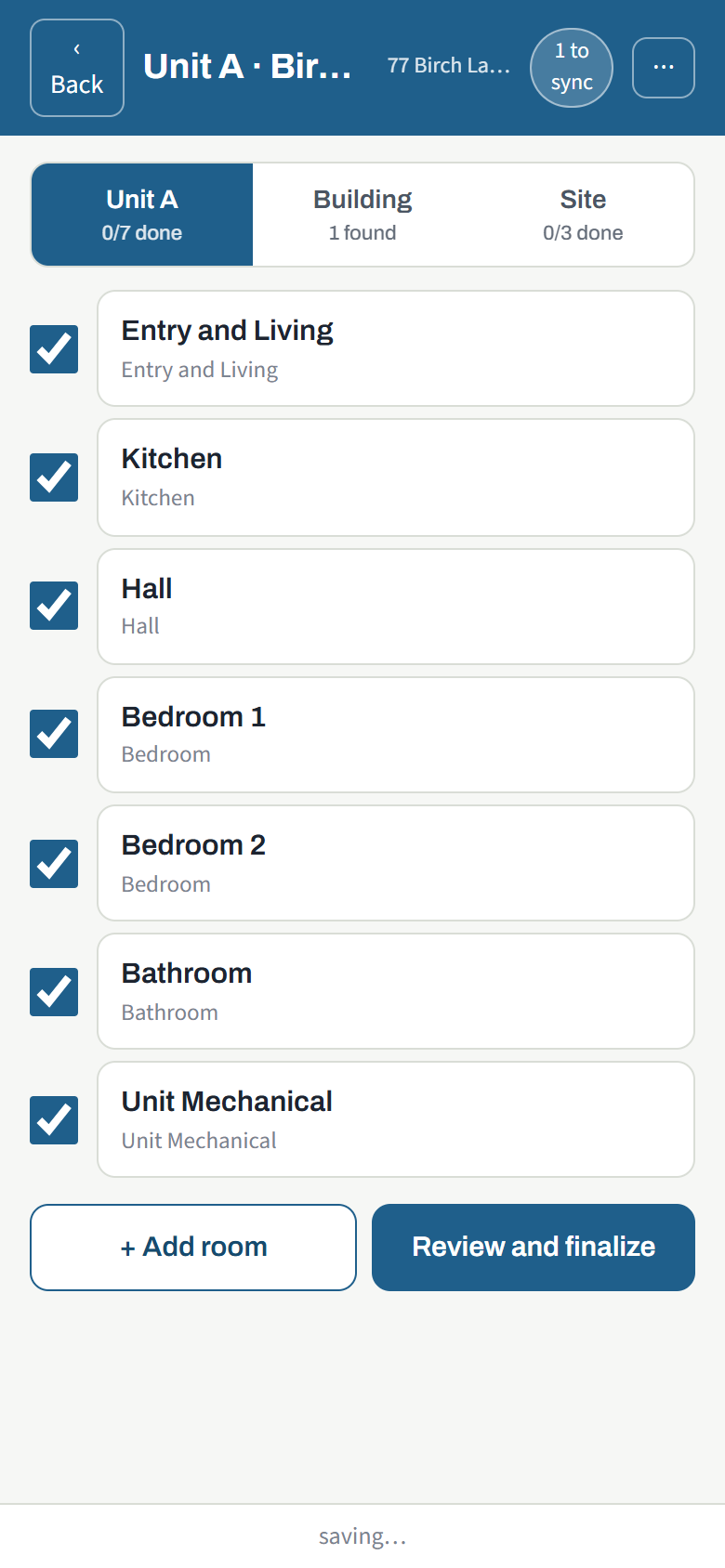
- Tap a room to open it. A room marked Done shows a check; the count at the top reads "3/7 done".
- Un-tick a room you did not need (a second bathroom that does not exist) and it is left out of the report.
- The ⋯ menu adds a room or stop, renames or re-orders rooms, saves this walk as your own template, changes the inspection type or email addresses, or deletes the inspection.
Inside a room
Every room shows the NSPIRE-V lines that apply to it. Blank means pass: you only tap what fails.
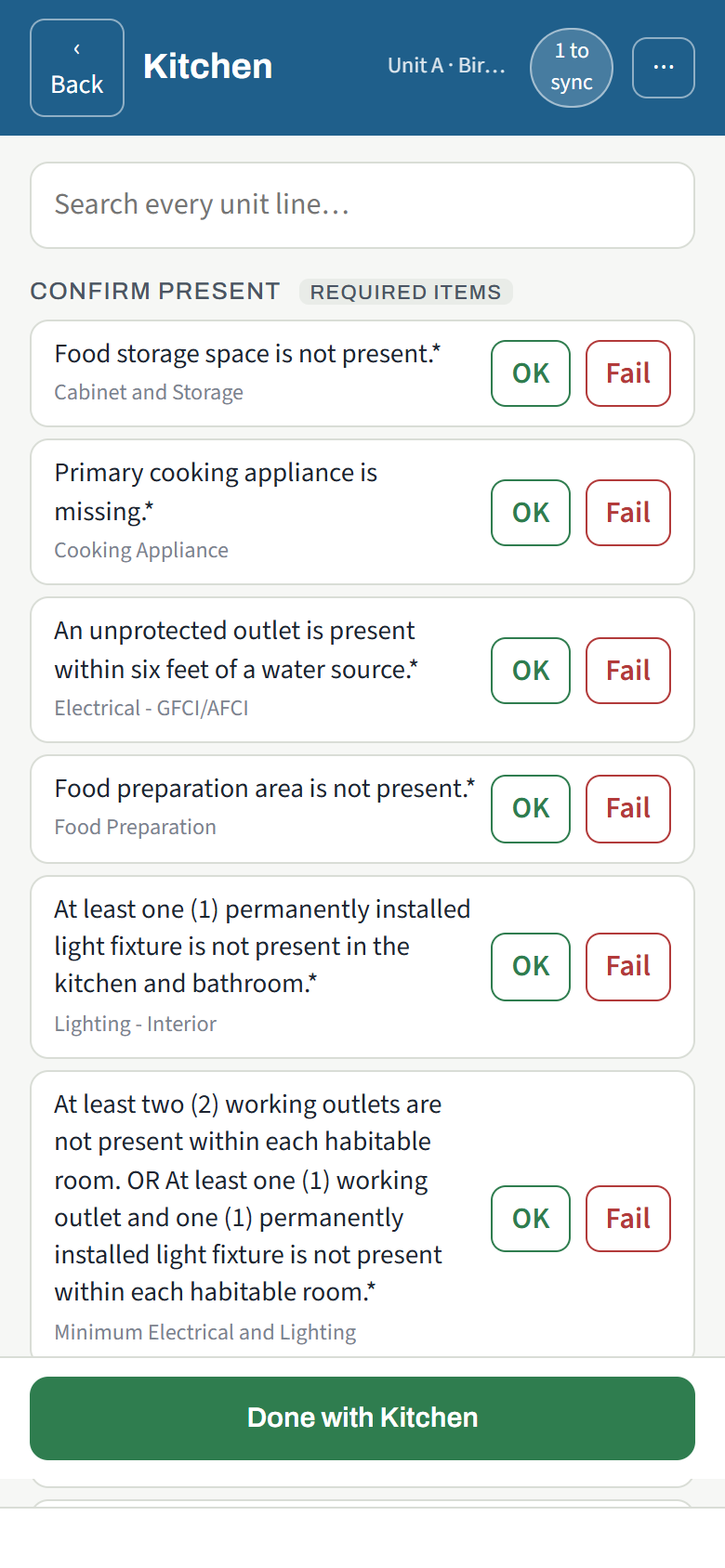
- Confirm present (at the top, when the room has required items such as a smoke alarm or a GFCI outlet): tap OK if it is there and working, Fail if not.
- Lines by component: tap a line to cite it. The severity badge (LT, S, M or L) comes from HUD's standard for that line; you never choose it. Tap again to remove it. A cited line gets an optional one-line inspector comment beneath it.
- Other observation: something not on the checklist. You type what you saw and pick the severity yourself.
- Photos: Camera opens the camera inside the app; Choose picks from the phone. Photos are kept on the device until they upload. Tap a photo to caption it or attach it to a specific finding.
- Note: anything about the room as a whole.
- Done with Kitchen at the bottom marks the room done and moves on.
The search box finds a line in any component. Show items not applicable to this property reveals lines hidden because the property's features (no elevator, no pool) rule them out.
Where a line may be cited
HUD's standard has three columns: Unit, Inside (common areas) and Outside. A line only appears where HUD allows it, so a hallway handrail is on the Building tab and a trip hazard on a walkway is on the Site tab, each with the severity for that column.
Details mid-walk
The Details screen (from the walk's ⋯ menu) lets you correct the bedroom, bathroom, level and floor counts after the walk has started. Rooms already on the list are not regenerated.